To diagnose an error in Power-user, check the Power-user log files and the Windows logs, then send them to the Power-user support team. The logs help understand the cause of the issue, even when the add-in does not load and shows no error message.
- Power-user logs: C:\Users\%UserName%\AppData\Local\Temp\Power-user.
- Hidden errors: show them with the environment variable VSTO_SUPPRESSDISPLAYALERTS set to 0.
- Windows logs: Event Viewer, Windows Logs, Application.
In this article
How to check the Power-user logs
When you perform some actions with Power-user, some data is temporarily stored on your computer until the next session. If you experience an error, the log file can give the support team useful information about its cause.
- Go to C:\Users\%UserName%\AppData\Local\Temp\Power-user.
- Send us the log file for the relevant application.
Can't find the AppData folder? Click the View tab in Windows Explorer and check the box to show Hidden items.
How to check the Windows logs
Normally, an error comes with a message that indicates its cause. If the add-in is not loaded, no message is shown, but you can enable these messages with a Windows environment variable to find the origin of the problem.
Step 1: Display alerts with an environment variable
- From the Windows Start menu, search for Advanced system properties.
- In the Advanced tab, click Environment variables.
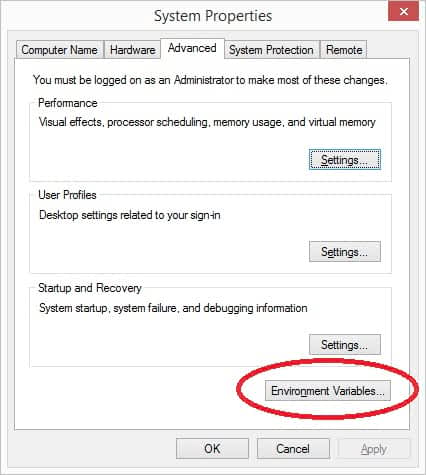
Windows System Properties, Advanced tab, Environment Variables button
- Under System variables, click New.
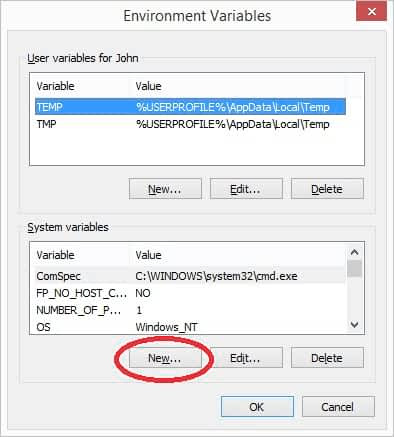
Windows Environment Variables window, New button under System variables
- Enter VSTO_SUPPRESSDISPLAYALERTS as the variable name and set the value to 0.
- Click OK, then OK again to close the environment variables and the system properties.
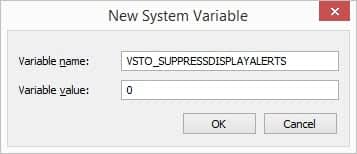
New System Variable VSTO_SUPPRESSDISPLAYALERTS with value 0
Step 2: Check the Windows Event Viewer
- From the Windows Start menu, search for Event Viewer and launch it.
- In the Event Viewer, open Windows Logs on the left and go to Application.
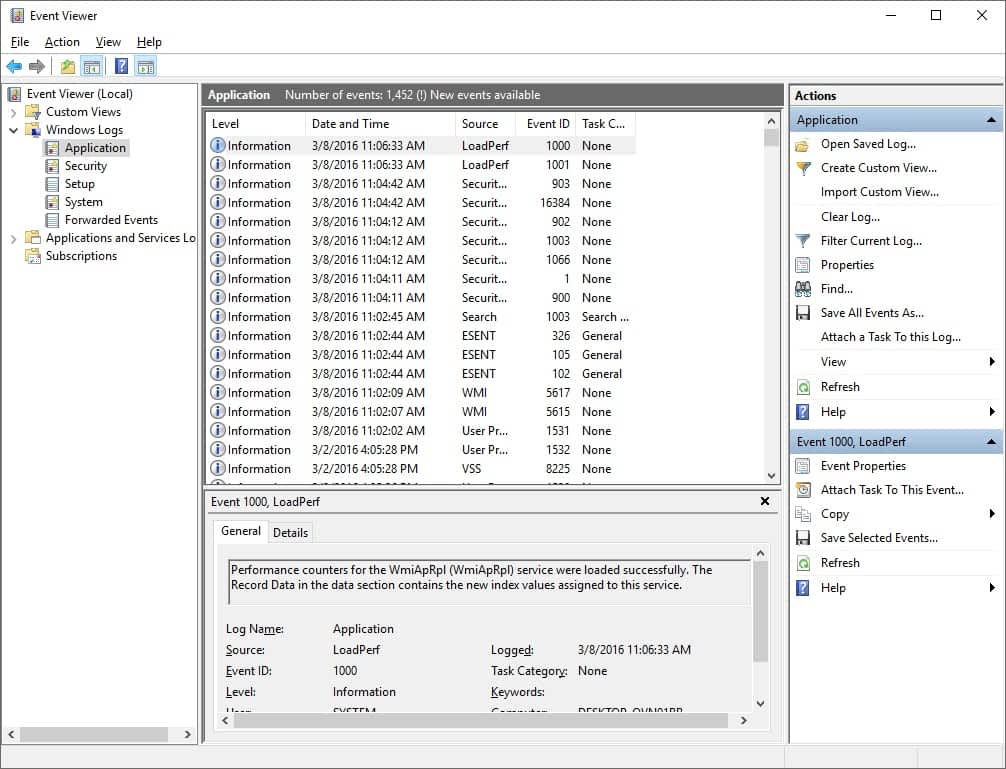
Windows Event Viewer, Windows Logs, Application
- Look for recent entries with Error in the Level column.
- Open the details of the log entry and look for the error message.
- Open a support ticket with us and provide the logs, together with the steps you have taken so far.
When you're done, set the environment variable back to 1, or delete it from the list.
Frequently asked questions about diagnosing Power-user errors
Where are the Power-user log files?
The Power-user log files are in C:\Users\%UserName%\AppData\Local\Temp\Power-user; send the log file of the application where the error occurred to Power-user support.
Why can't I find the AppData folder?
AppData is a hidden folder in Windows. In Windows Explorer, click the View tab and check Hidden items to see it and reach the Power-user logs.
How do I see error messages when Power-user does not load?
Create a Windows system environment variable named VSTO_SUPPRESSDISPLAYALERTS with the value 0: Office then shows the error messages of add-ins like Power-user that fail to load.
Where do I find add-in errors in the Windows Event Viewer?
Open the Event Viewer, go to Windows Logs, Application, and look for recent entries with Error in the Level column to find the Power-user error message.
What should I send to Power-user support?
Open a ticket with Power-user support and send the Power-user log file, the Windows log entries, and the steps you have taken so far.
Should I keep the VSTO_SUPPRESSDISPLAYALERTS variable?
No. Once you have diagnosed the Power-user error, set VSTO_SUPPRESSDISPLAYALERTS back to 1 or delete the variable.
Was this article helpful?
That’s Great!
Thank you for your feedback
Sorry! We couldn't be helpful
Thank you for your feedback
Feedback sent
We appreciate your effort and will try to fix the article