Power-user is a VSTO add-in for Microsoft PowerPoint, Excel and Word that is installed and runs locally on each Windows computer. This page gives IT teams the technical overview they need before deploying it: architecture, installation folders, files and registry keys, network exchanges and admin controls.
In short
- Type: VSTO add-in for Office on Windows, digitally signed by Power-user SAS
- Installation: per user in AppData (recommended) or per machine in Program Files, with an .msi, Intune or a script
- Network: one domain to allow, powerusersoftware.com, for licenses, updates, the Library and optional third-party services
- Offline: keeps working without a connection once activated; Airplane mode for isolated computers
- Admin controls: AI and third-party services can be turned off or hidden centrally
In this article
Architecture of the Power-user add-in
Power-user is a VSTO (Visual Studio Tools for Office) add-in. It is loaded by PowerPoint, Excel and Word on the user's computer and interacts with Office according to the standard VSTO architecture below (see Microsoft documentation on VSTO add-ins).

Architecture of VSTO add-ins for Microsoft Office: registry, deployment manifest, application manifest and add-in assemblies
- Runs locally: Power-user works inside the Office applications; documents stay on the computer and are never sent to Power-user.
- Signed: the installer and the add-in are digitally signed by Power-user SAS.
- No sign-in: users do not need to sign in once the license is activated.
- Works offline: once activated, Power-user keeps working without a connection, and during an outage of the Power-user licensing service.
For compatibility with Windows and Office versions, see Compatibility.
Installation options
| Per-user installation (recommended) | Per-machine installation | |
|---|---|---|
| Folder | C:\Users\<UserName>\AppData\Local\Power-user | C:\Program Files (x86)\Power-user |
| Context | User context only | Installation in the admin context, license activation in the user context |
| Updates | Users get updates on their own | Each update must be deployed by the IT team |
| Best for | Most organizations | Organizations that want full control over the version used |
IT teams can deploy Power-user with the Power-user .msi installer, Microsoft Intune or a script. Before packaging Power-user, contact us: we run a quick security check, in less than 24 hours, before your license key can be used for deployment. To remove it, see Uninstalling Power-user by script.
Files and registry keys on the computer
| What | Default location | Notes |
|---|---|---|
| Registry keys (including the deployment manifest) | HKEY_CURRENT_USER\SOFTWARE\Microsoft\Office\PowerPoint\Addins\Power-user, and the same for Excel and Word | For a per-machine installation, the keys are under HKEY_LOCAL_MACHINE |
| Application manifest and installation files | C:\Users\<UserName>\AppData\Local\Power-user | IT admins can install them elsewhere, for example in Program Files |
| Session logs and temporary files | C:\Users\<UserName>\AppData\Local\Temp\Power-user | Logs are overwritten each time the application starts |
| Content files browsed in the Library (templates, icons, maps…) | C:\Users\<UserName>\Documents\Power-user | Downloaded from Power-user or from your own storage for shared libraries |
| Power-user settings set by admins | HKEY_LOCAL_MACHINE\SOFTWARE\Power-user | Optional values, such as Airplane mode or hidden features (see below) |
Network exchanges
Unless Airplane mode is turned on, computers with Power-user exchange data with the Power-user server from time to time:
| When | What Power-user does |
|---|---|
| When Office starts | Checks for updates and downloads the latest version if there is one; sends usage data and tells the server that the device is still active |
| When the Library opens | Checks whether Library content needs to be updated |
| When a user uses an optional third-party feature | Sends the user's request (keywords, prompt, text or slides) through Power-user's servers to the partner service, for stock pictures, logos or AI content |
Domains to allow on your firewall or proxy
All the calls made by Power-user go to a single domain. We recommend allowing the whole domain rather than individual URLs, so that new services keep working without changes on your side.
| Domain | Used for | Required |
|---|---|---|
| powerusersoftware.com (HTTPS) | License activation and transfer, update checks and downloads, usage data, Library updates, requests to third-party services (pictures, logos, AI), admin portal, installer downloads | Yes |
| login.microsoftonline.com and graph.microsoft.com | Downloading shared Library files from SharePoint through the Power-user Connector | Only if you use the SharePoint Connector |
Computers never contact partner services directly: pictures, logos and AI results are all relayed by powerusersoftware.com, so no partner domain (Pexels, Unsplash, Logo.dev, Magnific, OpenAI, Mistral AI) needs to be allowed.
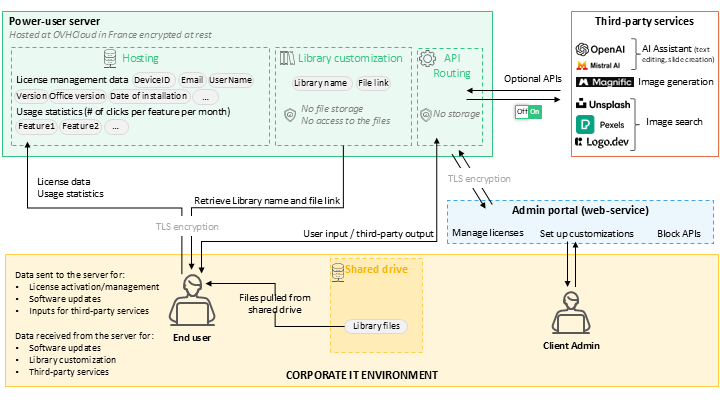
Data exchanges between users' computers, the Power-user service, the admin portal and third-party services
Shared Library files stored on your network or SharePoint are downloaded by each computer directly from your storage: Power-user only knows their name and link. For SharePoint, see SharePoint Connector and its limited-rights version.
For the full list of data collected, partners and AI providers, see Data protection & IT security.
Admin controls
Admins can limit what Power-user does on users' computers:
| Control | How |
|---|---|
| Turn off AI features or choose the AI provider (OpenAI or Mistral AI) | In the admin portal |
| Hide specific AI features or Library menus | Registry values under HKEY_LOCAL_MACHINE\SOFTWARE\Power-user (see Rolling-out Power-user by script) |
| Block all calls to third-party services | Registry value EnableExternalLibraries set to 0 |
| Isolate computers from the Internet (Airplane mode) | Registry value ContactServer set to 0; licenses, updates and some features then need manual handling |
| Avoid the Office trust prompt at first start | Install the Power-user certificate in the Trusted Publisher store |
Frequently asked questions about the Power-user technical architecture
Is Power-user a VSTO add-in or a web add-in?
Power-user is a VSTO add-in for Microsoft PowerPoint, Excel and Word. It is installed and runs locally on each Windows computer, and is digitally signed by Power-user SAS.
Where is Power-user installed?
By default, Power-user is installed per user in C:\Users\<UserName>\AppData\Local\Power-user. IT teams can also install it per machine in C:\Program Files (x86)\Power-user.
Where does Power-user store its logs?
Power-user saves session logs and temporary files in C:\Users\<UserName>\AppData\Local\Temp\Power-user. The logs are overwritten each time the application starts.
When does Power-user connect to the Internet?
Power-user connects to its server when Office starts (updates, license status and usage data), when the Library opens (content updates), and when a user uses an optional third-party feature such as stock pictures or AI.
Can Power-user run without an Internet connection?
Yes. Once activated, Power-user keeps working offline. For computers isolated from the Internet, IT teams can turn on Airplane mode with a registry value; license renewals and updates then need manual handling.
Which domains must be allowed for Power-user?
Power-user only calls the powerusersoftware.com domain over HTTPS, for licenses, updates, the Library, third-party services and the admin portal. Computers never contact partner services directly. Allow the whole domain rather than individual URLs. If you use the SharePoint Connector, also allow login.microsoftonline.com and graph.microsoft.com.
How can IT teams deploy Power-user?
IT teams can deploy Power-user with the .msi installer, Microsoft Intune or a CMD script that installs Power-user and activates the license without any action from users.
Was this article helpful?
That’s Great!
Thank you for your feedback
Sorry! We couldn't be helpful
Thank you for your feedback
Feedback sent
We appreciate your effort and will try to fix the article