The Power-user Shape Carousel is a feature of the Power-user add-in for PowerPoint that groups multiple shapes (icons, images, charts, buttons) into a single stack on your slide, with small arrows to click through them one at a time. Only one shape is visible at a time; the rest stay hidden until you select them. One slide can then show a different status, button state, image or language in a click.
In short
- Where: select your objects, right-click, then click Create shape Carousel at the bottom of the right-click menu.
- What you get: a single stack that shows one object at a time, with navigation arrows and a gallery of all the objects it contains.
- Ready-made: Power-user provides Shape Carousels in the Shapes Library (clickable buttons, indicators, stamps, slide status, KPI trends).
In this article
Create a Shape Carousel in PowerPoint in 3 steps
Select a group of shapes, images, charts or any other objects on your slide.
Right-click your selection. At the bottom of the right-click menu, click Create shape Carousel.
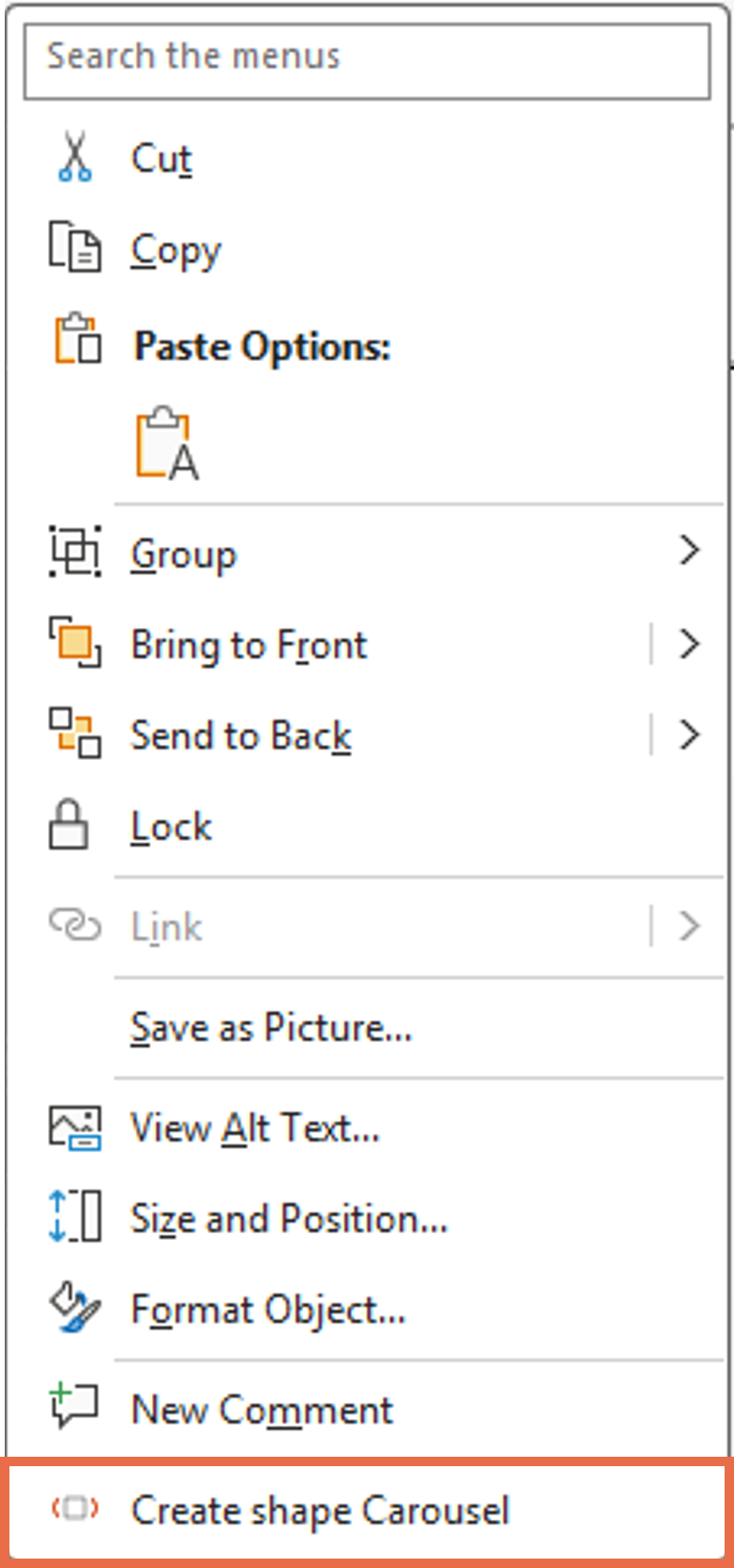
Create shape Carousel command at the bottom of the PowerPoint right-click menu
That's it. Only one of the objects from your selection remains visible. The others appear one after the other when you click the arrow buttons displayed on top of the selection.
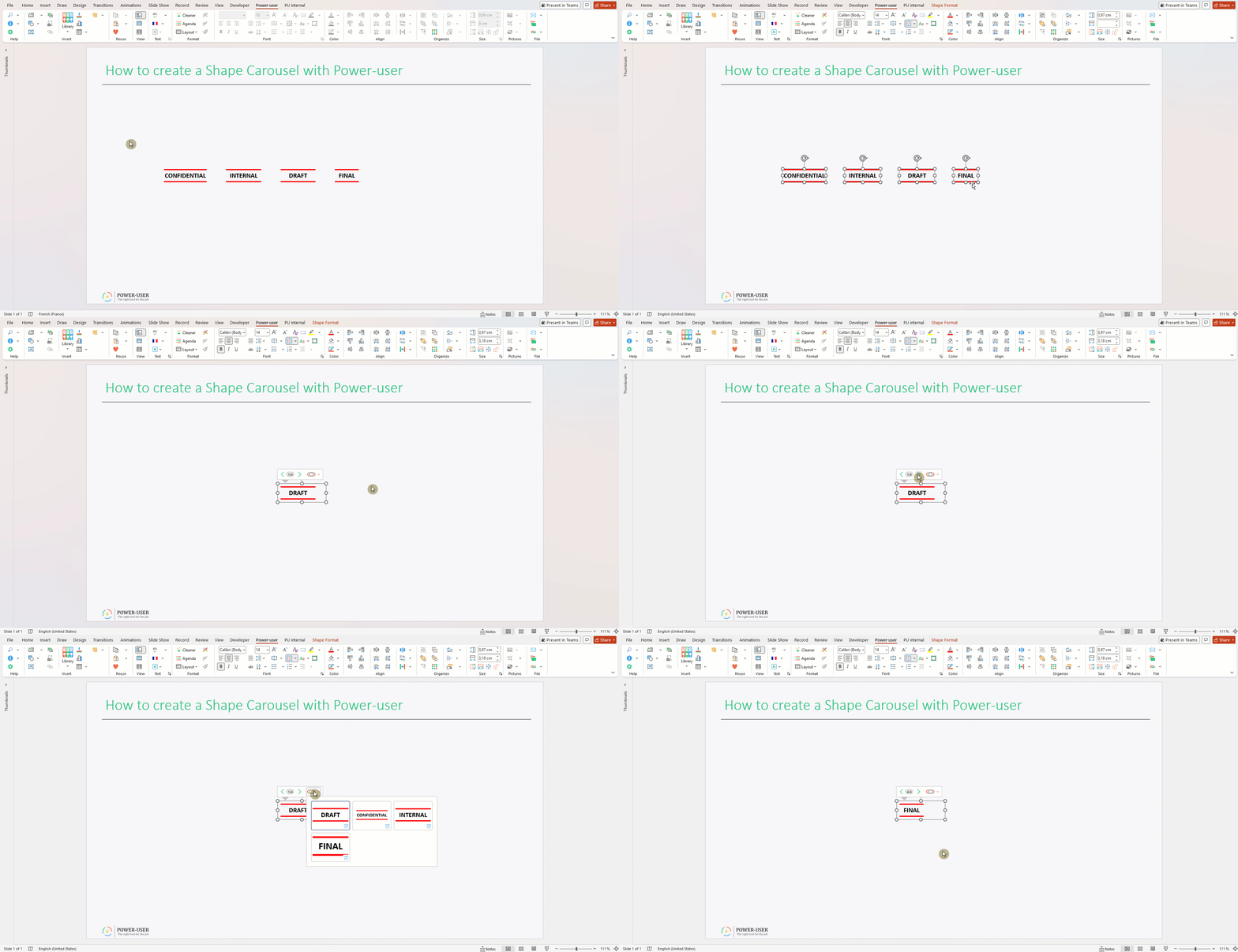
Creating a Shape Carousel from several stamp shapes with the right-click menu in PowerPoint
How to use a Shape Carousel in PowerPoint
- Select your Shape Carousel. A contextual window appears above it.
- Click the navigation arrows in this window to rotate which object of the Shape Carousel is visible.
- Or use the gallery, which shows all the objects in your Shape Carousel: click the one you want to make visible.
Insert a ready-made Shape Carousel from the Shapes Library
Power-user provides a number of ready-made Shape Carousels, available directly in your Shapes Library. They include:
- clickable buttons
- indicators
- stamps
- slide status
- KPI trends and other indicators
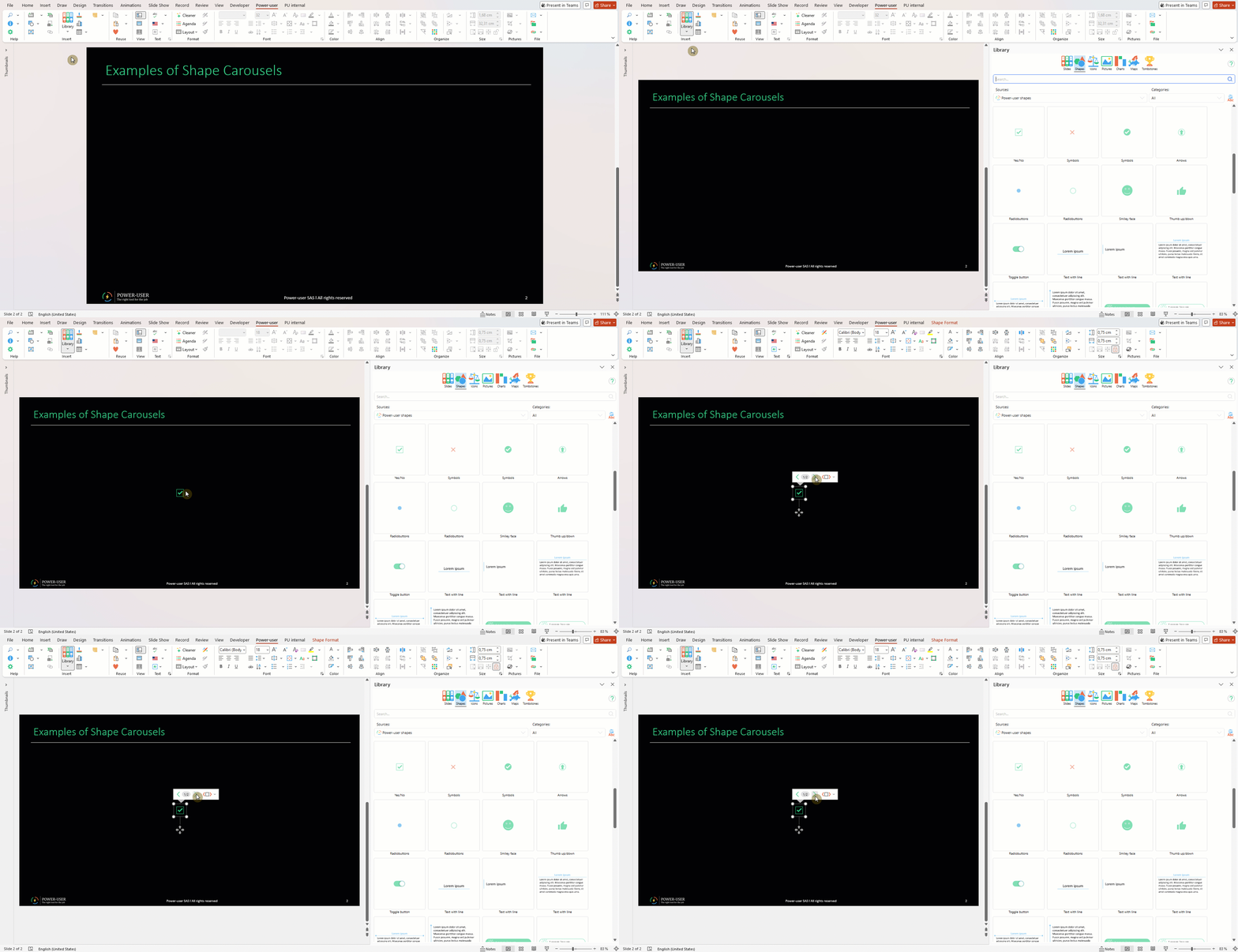
Example of a Shape Carousel inserted from the Power-user Shapes Library in PowerPoint
Why use a Shape Carousel: 5 use cases
A Shape Carousel has many possible uses:
- Status indicators: traffic lights, trend arrows, positive or negative signs.
- Reactive buttons: checkboxes, toggles.
- Pre-defined images: offer users a list of images they can choose from to illustrate certain slides of the company template.
- Dynamic sliders: go into more detail on a topic, depending on how the conversation goes.
- Multilingual presentations: show content in one language or another with the click of a button.
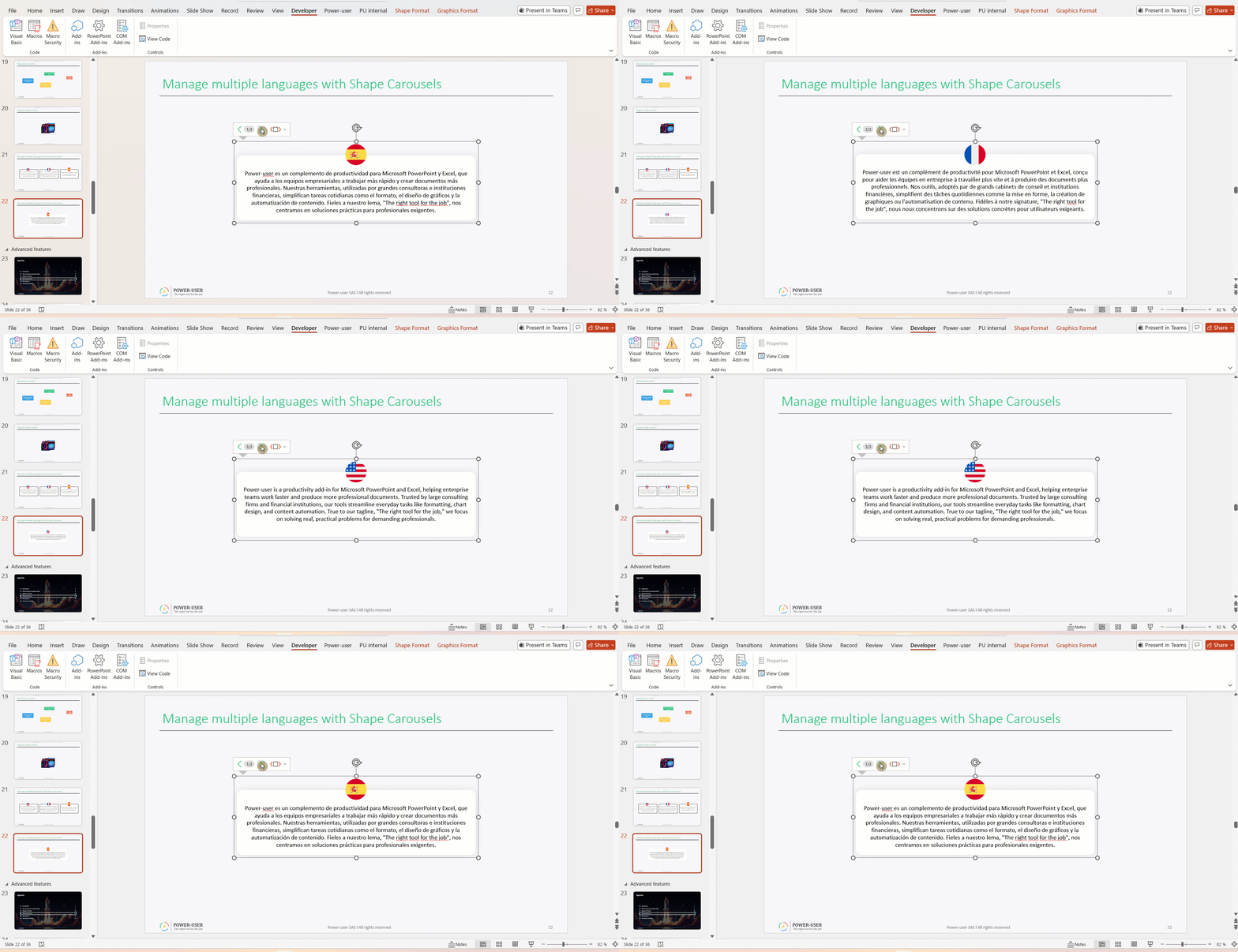
Multilingual PowerPoint presentation built with Shape Carousels
Frequently asked questions about the Shape Carousel
What is a Shape Carousel in PowerPoint?
A Shape Carousel is a Power-user feature for PowerPoint that groups multiple shapes, such as icons, images, charts or buttons, into a single stack on a slide. Only one shape is visible at a time, and small arrows let you click through the others.
How do I create a Shape Carousel in PowerPoint?
With the Power-user add-in for PowerPoint, select the objects to group, right-click, and click Create shape Carousel at the bottom of the right-click menu. Only one object stays visible, and arrow buttons let you display the others.
How do I switch between the shapes of a Shape Carousel?
Select the Power-user Shape Carousel on your PowerPoint slide: a contextual window appears above it. Click its navigation arrows to rotate the visible object, or click an object in the gallery to display it directly.
Which objects can I put in a Shape Carousel?
A Power-user Shape Carousel in PowerPoint can be created from shapes, images, charts or any other objects. Select them together, then right-click and click Create shape Carousel.
Does Power-user provide ready-made Shape Carousels?
Yes. The Power-user Shapes Library in PowerPoint contains ready-made Shape Carousels, including clickable buttons, indicators, stamps, slide status and KPI trends.
How do I create a multilingual presentation in PowerPoint?
A Power-user Shape Carousel lets you build a multilingual PowerPoint presentation: the carousel holds the content in each language, and you show one language or another with the click of a button.
Was this article helpful?
That’s Great!
Thank you for your feedback
Sorry! We couldn't be helpful
Thank you for your feedback
Feedback sent
We appreciate your effort and will try to fix the article