With Power-user you can browse and insert PowerPoint slides directly into your presentation. This is one of the most popular features of the add-in, as it helps any user craft outstanding presentations with slides that look as made by a professional design agency.
TABLE OF CONTENTS
How to insert slides from the Library
Inserting a slide
- From the Power-user tab, click Library or press CTRL+SHIFT+Y. The Library pane will open at the right of your screen. If it's the first time you are using it, or if there are new content updates available, you may see it loading for a moment.
- Search for slide templates using the search bar on top, the scrollbar or the Categories. For instance, you can select the Boxes x04 category to filter only PowerPoint templates with 4 items on the slide.
- Simply click a slide template to insert it in the presentation.
Facing an issue with the Library? Here are the 2 most frequent issues:
The templates / icons / maps are not downloading in the Library
The mouse cursor is flickering in the right pane
Defining the insertion format
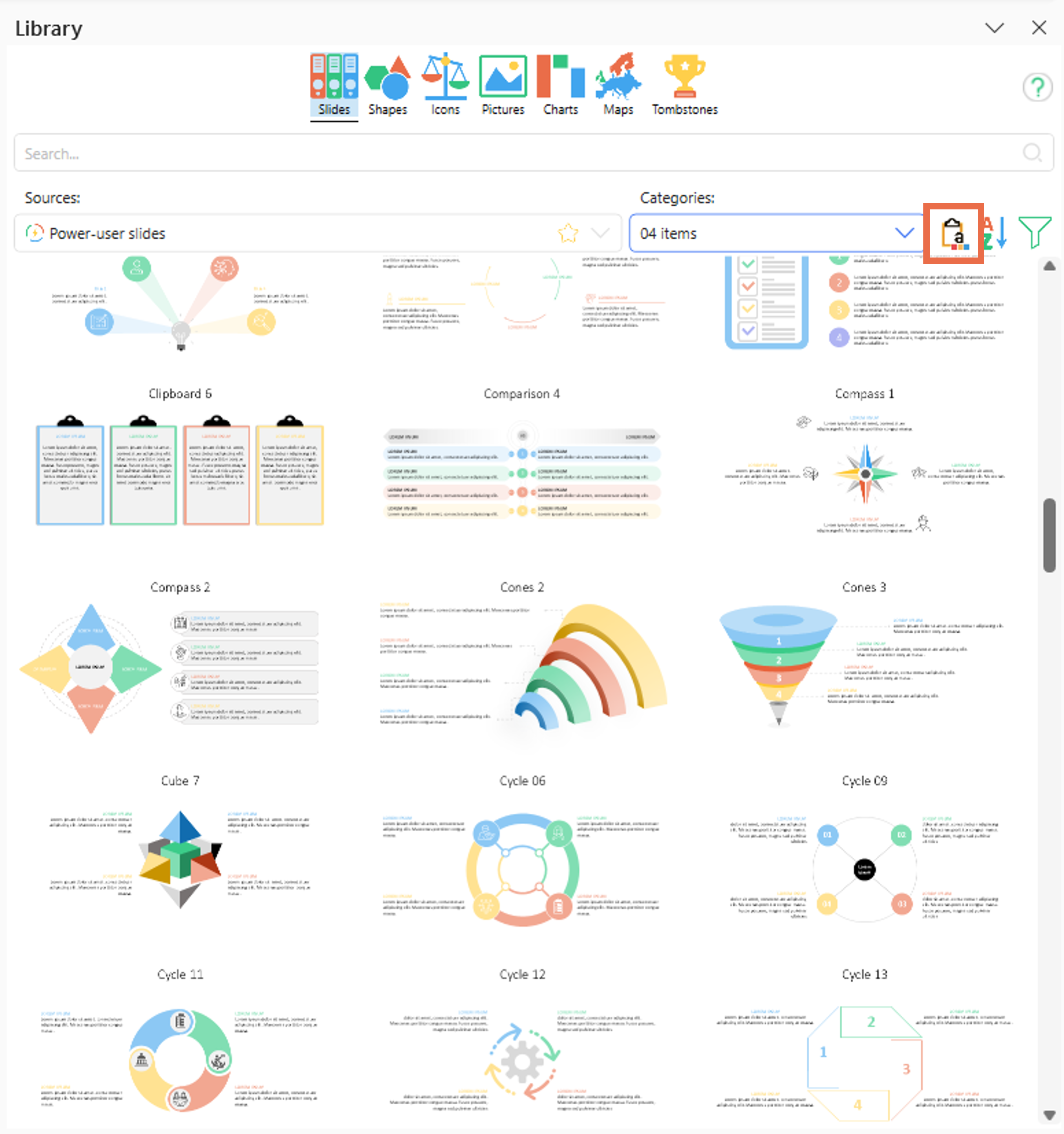
Slides can be inserted either keeping source formatting or using the destination theme.
- Source Formatting:
- This means that the slides are inserted exactly the way you see them in the Library.
- The corresponding master and layouts will be imported in the presentation to preserve the source format.
- This means that the slides are inserted exactly the way you see them in the Library.
- Destination Theme:
- The slides will be will be inserted using an existing layout from the current presentation, avoiding to pollute the slide master with new layouts. If you want to ensure a specific layout is always used, you can do so by right-clicking a slide or layout and hitting Set as layout for > Power-user Slides.
- The colors, fonts, title position etc. will be converted to automatically match the current presentation.
- Also, if you need later to paste the slides into another presentation, they will also automatically convert without manual re-work. This is because all Power-user templates are designed with theme colors and theme fonts.
Set up your prefered behavior from the button show below:
Defining the insertion layout
When inserting a slide using the destination theme, Power-user will by default apply the layout of the previous slide in the deck.
You can also set up a specific layout to be used for templates upon insertion. For this, just right-click a slide with the desired layout, and click Set as layout for > Power-user slides.
Filtering and sorting slides
Click the Sort button to change how the templates are sorted. By default, they are sorted alphabetically by Description (i.e. slide title), but you can also sort by Category, number of Items, Background color, etc or any custom field set up by your organization. You can always sort Ascending or Descending.
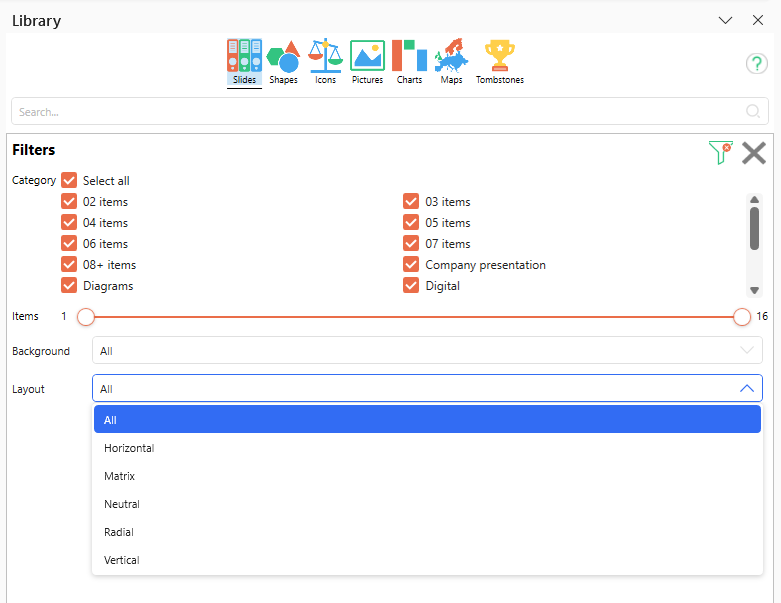
Filtering and sorting slides require a customization of the slides to include metadata. This is possible for the Power-user slides or for slides customized at an organization level, however such custom filters and sorting is not possible for My Slides or self-configured slides. Sources of slides
The Library can include many sources of Slides. You can switch between them from the Sources drop-down list:

Power-user Slides
Power-user gives you access to 1,000 templates of PowerPoint slides, immediately available to design presentations quickly. We update the Library periodically with additional slides.

Customization of the Power-user Slides
By default, Power-user slides are provided in a neutral version. But they can be customized to match your organization's branding.
When they are customized, they follow your organization's colors, layouts, title and logo position, providing users with a highly unified, on-brand experience.

Contact us if you would like to inquire about getting a custom version of our slides to match your template and branding.
My Slides
This is your own individual collection of slides. You can save here your favorite or most frequently used slides, and access them anytime later.
- To add a slide to My Slides, just right-click it and choose Save in Library.
- Find it and insert it from the Library by selecting My Slides under Sources.

The slides you save in My Slides are saved locally on your computer. You can find them in Documents\My Power-user files\My PPT templates, which can be useful if you want to migrate them to a different computer for instance.
Configure
Instead of adding slides individually, you can click Configure libraries in the Sources drop-down, and link to an existing file. The entire file will be automatically added as a link to the Library. This means when the file gets updated, the update will be automatically reflected in the Library. This can be very useful especially if you are working collaboratively with files saved on a shared location.

My company slides
The Library can be customized to integrate your organization's own resources. For instance, it can integrate your official corporate presentation, the CVs of your team, key figures, training support material, etc.
This is a great solution to ensure that users have access to useful and up-to-date content.
- These slides can be set up centrally by your Power-user administrator from your organization.
- The administrator can also push updates to the users when needed, securing that every user has access to the correct, up-to-date version of each slide.
- Users can be divided into different teams, each team having access to their own slides.
- With our help, the admin can also set up custom fields to allow users to easily filter and sort the slides as if it were a mini knowledge management system for slides.
Read more about this here: Integrating your assets in the Library
Favorites
The Library opens directly on your favorite source of slides, so that you can immediately start looking for the templates you need.
To define your favorite source, click the yellow Favorite star in the Sources drop-down list.
Was this article helpful?
That’s Great!
Thank you for your feedback
Sorry! We couldn't be helpful
Thank you for your feedback
Feedback sent
We appreciate your effort and will try to fix the article