TABLE OF CONTENTS
Table Styles
Power-user's Table Styles gallery allow you to quickly apply your corporate styles to various ranges in Excel.
Table Styles offer multiple benefits:
- They ensure a consistent design for all tables without effort
- They help users save time on formatting, applying multiple properties at once on the selection, instead of having to change separately the font color, font size, bold/italic/underline, fill color, borders, etc.
- They help organizations control how their brand is applied
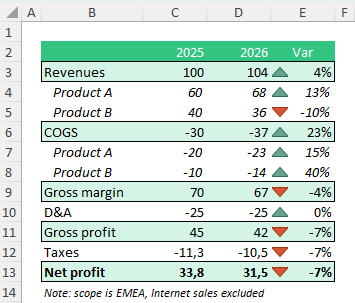
Applying Row Styles in Excel
To apply a Row Style, follow the following steps:
- Select a row of cells in your range
- From your Power-user tab, click the "Row styles" menu to open the styles gallery

- Click on the styles you want to apply, and it will format your row accordingly.
When you apply a Style to a row, Power-user follows the logic below:
- The format will be applied to each cell in the selection
- It will differentiate the format that should apply for cells containing text Vs numbers. For instance, it will align text to the left and numbers to the right if this is how the style has been defined.
- Borders will be applied not to each individual cell - as this may create unwanted internal borders - but to the entire row.
Customizing Row Styles
Customizing Row Styles as a user
Power-user allows you to easily customize the different row styles. For this:
- Click the "Row styles" menu from the Power-user tab
- At the bottom, click "Select new row styles". It will open the fold where you can see a file called "Styles.xlsx". This is where the row styles are saved.
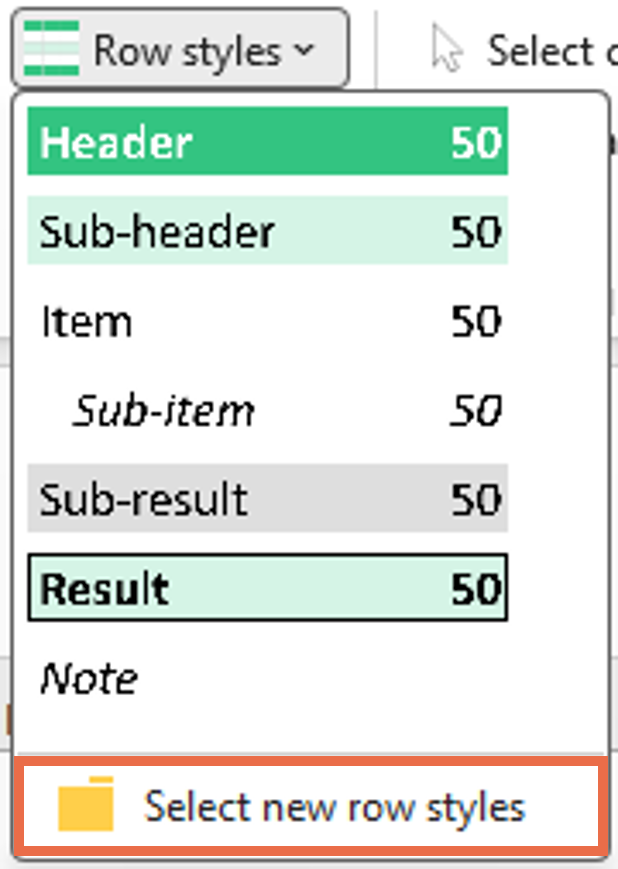
To edit or add styles:
- Navigate to this folder and open "Styles.xlsx". In the "Row styles" sheet, you should see the different default styles.
- You can edit a style by simply editing the format directly on the cells. Feel free to change colors, fonts, font sizes, borders, Bold/Italic/underline etc.
- You can add a new style to the list, under or in the middle of the existing styles. Following the example of the existing styles, make sure you include 2 columns, one for text and one for numbers.
- When you are done, save the file and close it.
- Next time you open Excel, the "Row styles" gallery will have updated.
Note: if a style in your list should have borders, but the style above or below should not, you can leave blank rows between them. This way applying a border to one style will not impact the adjacent styles.
Creating different sets of Row Styles
If you work with different brands, you may want to have different sets of styles without mixing up everything in the same file.
To create a new set of styles:
- Simply create a copy of the "Styles.xlsx" file, and edit it with the new styles you want.
- From the Power-user tab, in the "Row styles" gallery, click the "Select new row styles" and select the new file. It will replace the gallery with the styles from that file. You can always go back by selecting again the previous file.
Customizing Row Styles as an admin for my organization
For now, your organization should contact us to set it up for an entire group of users.
Was this article helpful?
That’s Great!
Thank you for your feedback
Sorry! We couldn't be helpful
Thank you for your feedback
Feedback sent
We appreciate your effort and will try to fix the article