Power-user allows organizations to integrate their own content with Power-user.
- The Power-user admin from your organization can add documents, slides, icons, images and other assets that already exist in our organization.
- Individual users can access this content directly from the Power-user Library in PowerPoint, Excel or Word, allowing them to easily browse and insert content without leaving their work application.
- The Power-user admin can push updates at any time, ensuring that users always have the latest version of your organization's content.
When the files are hosted on SharePoint, an IT admin needs to give Power-user permissions to download these files into the Power-user Library. These permissions are given via the Power-user Connector for SharePoint, following the instructions below.
Note that the Power-user company will never have access to your files.
The Power-user application will be allowed to access and download files from the SharePoint on behalf of the user of the machine. Only a user with existing access will be able to acces the files.
- Open the Power-user Connector consent prompt by adjusting the url below with your domain information (replace "<yourdomain.com>" with your own):
If your domain is not verified, you will need to specify the TenantID in the url below, and then open the url: https://login.microsoftonline.com/<tenantId>/adminconsent?client_id=427e8ab0-d35f-4661-b2c4-870071e7c63c&scope=https://graph.microsoft.com/.default- You should then see the prompt below:
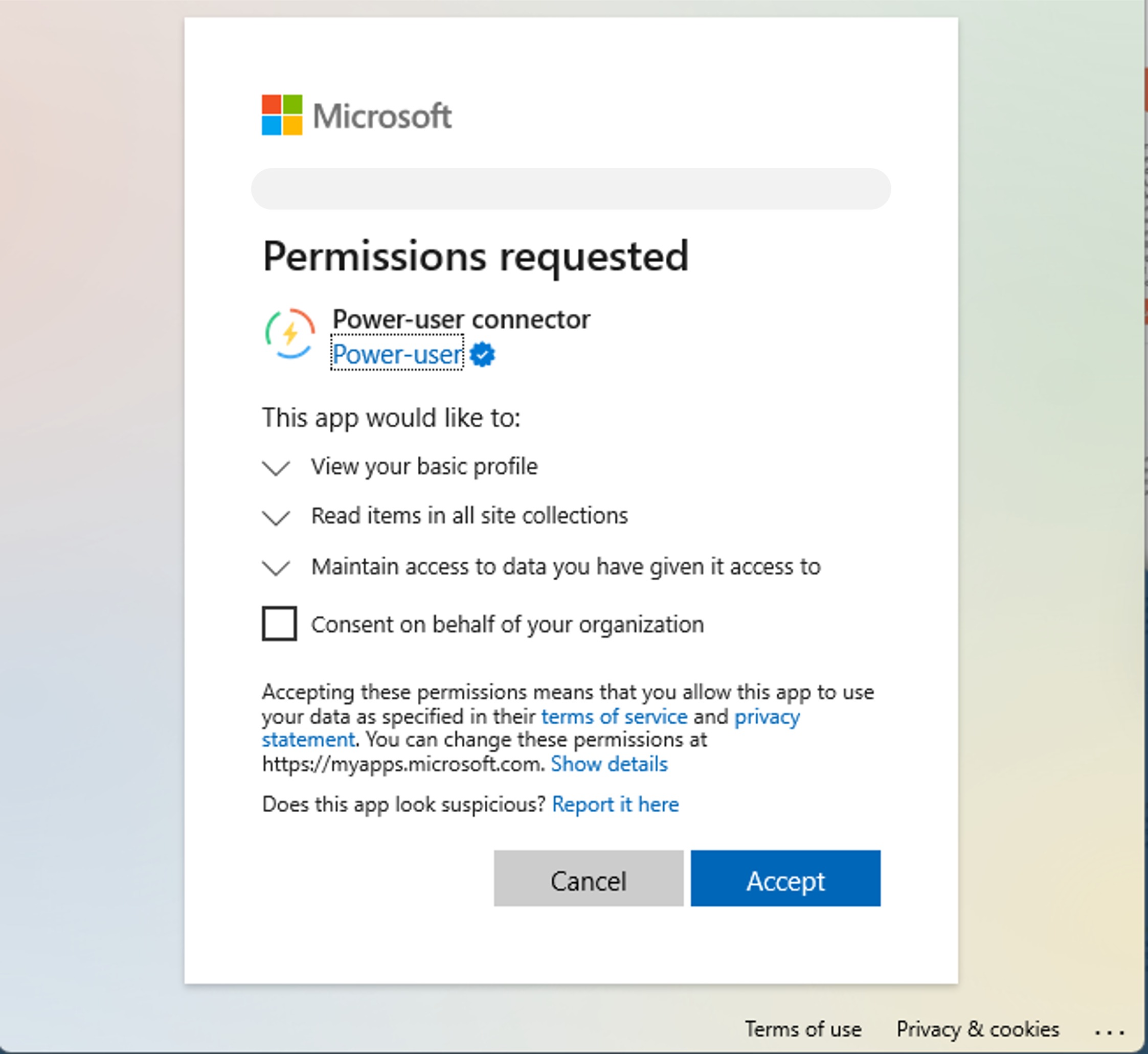
- With an admin account, select the box to give consent on behalf of your organization.
- That's it! When a user tries to access the files via the Power-user Library, they should be able to access without difficulty and obtain the download of the targeted files.
The procedure above is the simplest and default approach which we recommend for small and medium-size organizations.
For larger organizations, a specific procedure is also possible to give only limited rights, so that Power-user can only access to files from pre-defined SharePoint sites. Please contact us if you need to know more.
Was this article helpful?
That’s Great!
Thank you for your feedback
Sorry! We couldn't be helpful
Thank you for your feedback
Feedback sent
We appreciate your effort and will try to fix the article