The Shape Carousel functionality of Power-user lets you group multiple shapes (icons, images, charts, buttons) into a single stack on your slide, with small arrows to click through them one at a time. Only one shape is visible at a time, the rest stay hidden until selected. It offers many use cases and possibilities:
- Create status indicators (traffic lights, trend arrows, positive/negative, ...)
- Create reactive buttons (checkboxes, toggles, ...)
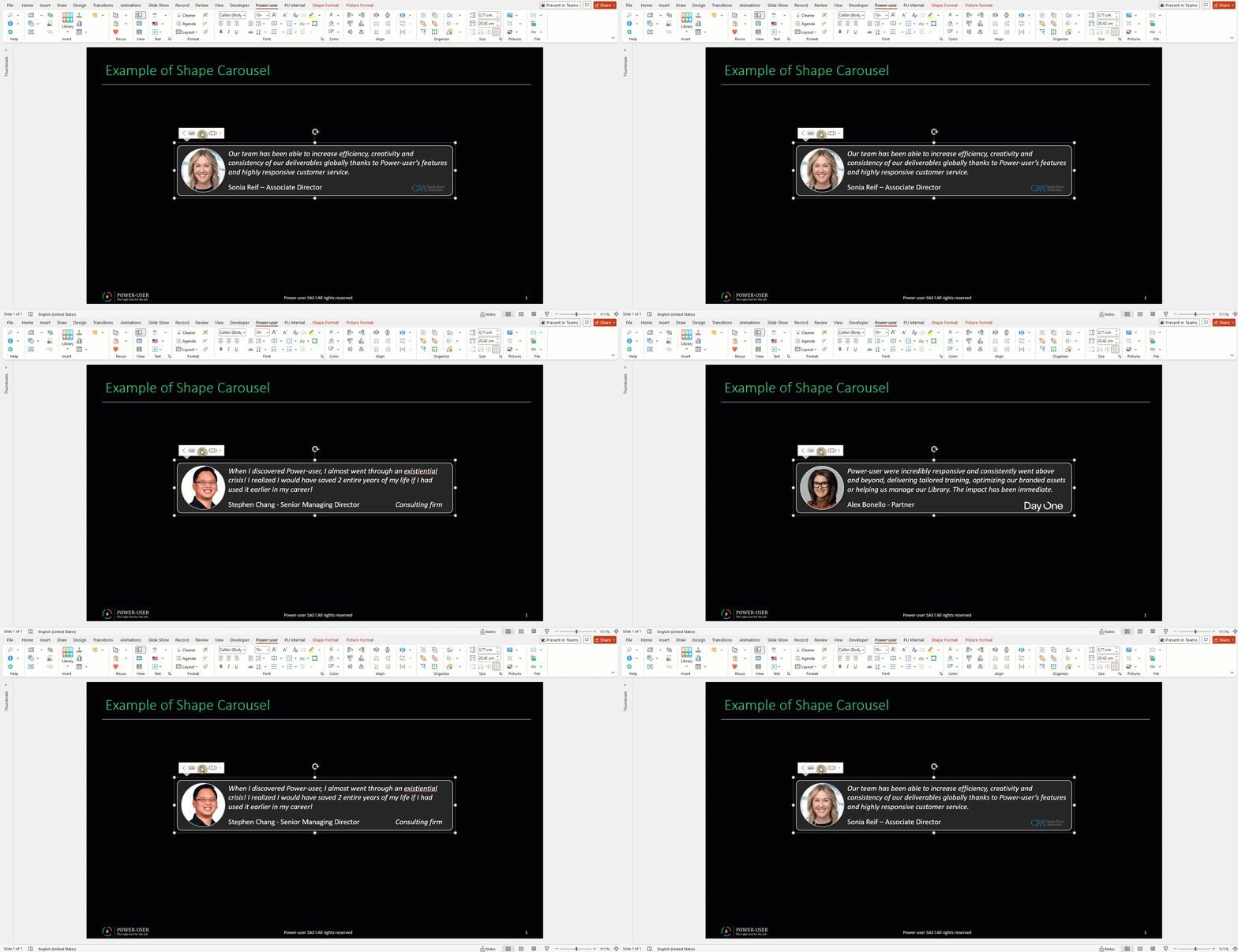
- Offer users a pre-defined list of images they can choose from to illustrate certain slides from the company template
- Create dynamic sliders so you can go more into details on a topic, depending on how the conversation goes
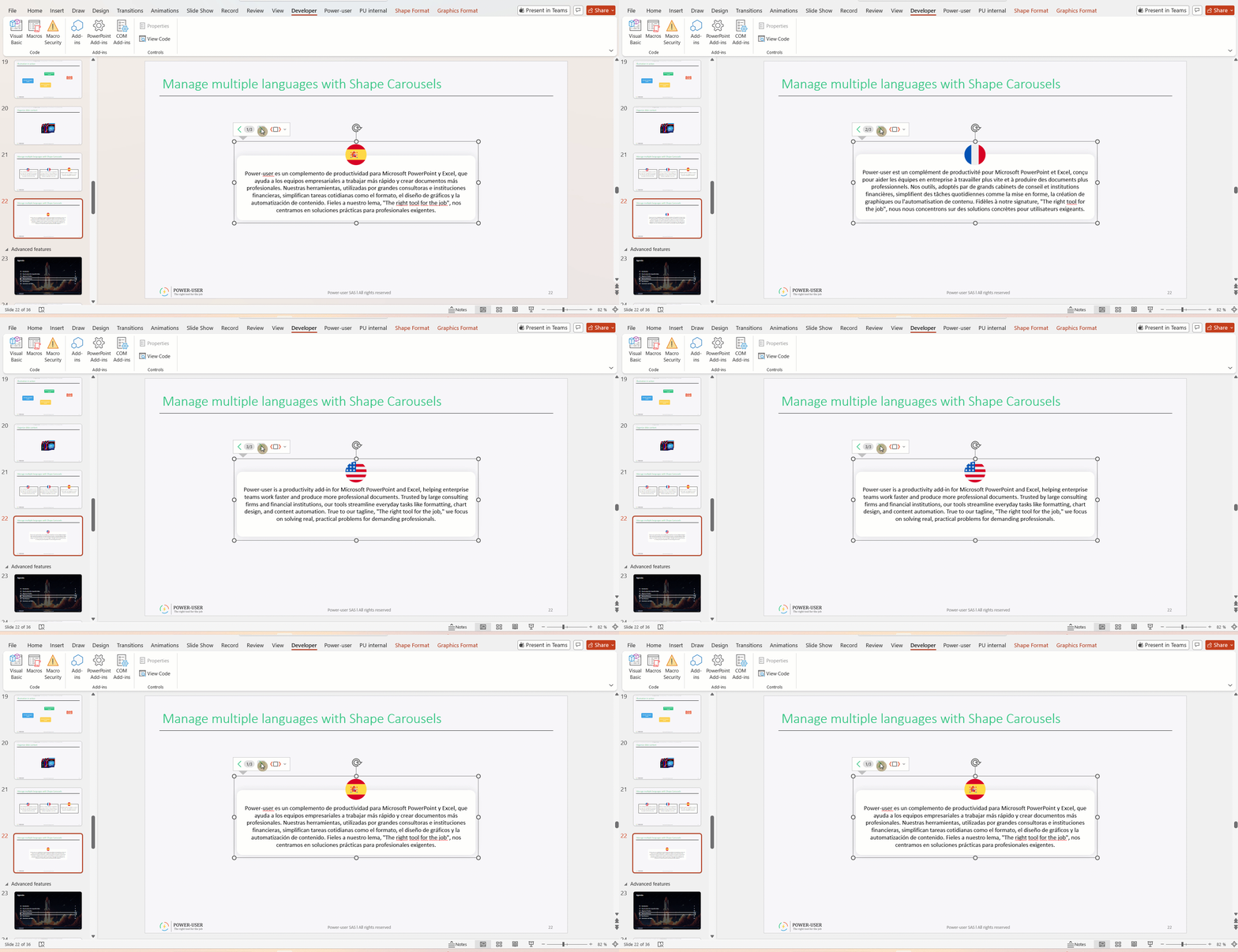
- Create a multilingual presentation, in which you can shows content in one language or another with the click of a button.
How to create a Shape Carousel
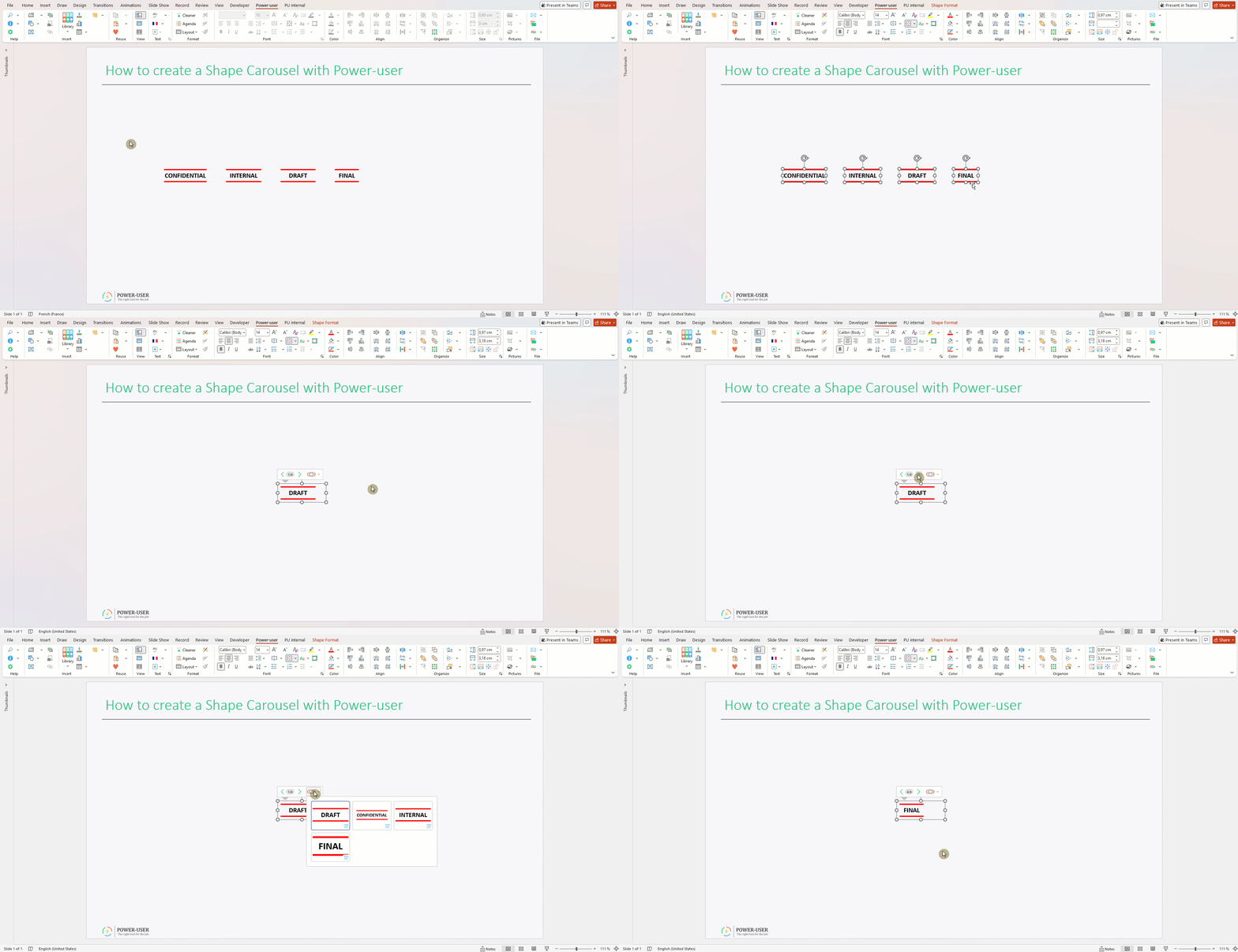
- Select a group of shapes, images, charts or any other objects.
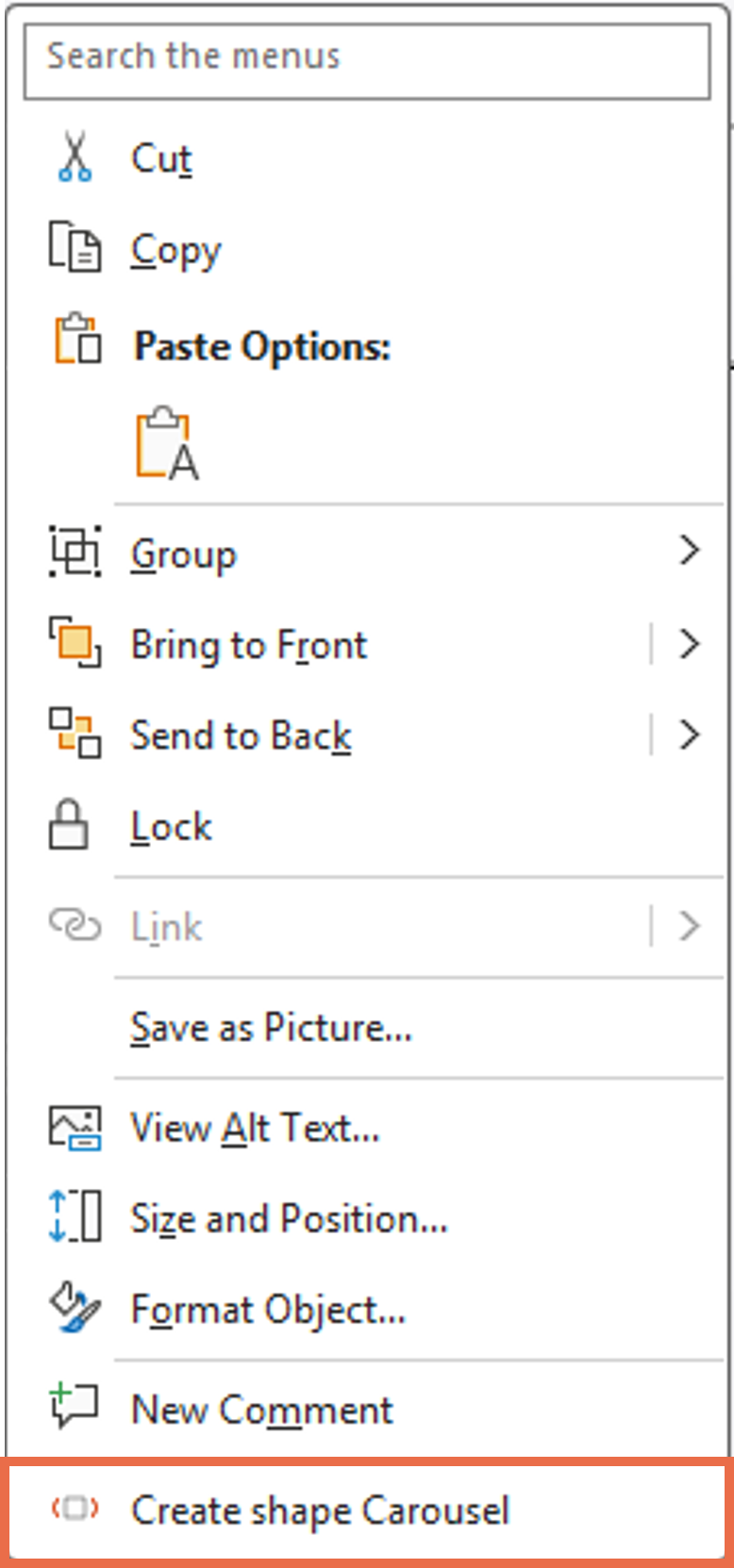
- Right-click, and at the bottom of the right-click menu, click "Create Shape Carousel".
- That's it! Only one of the shapes from your selection remains visible, and the others will appear one after the other when you click the arrow buttons visible on top of the selection.
How to use a Shape Carousel
- Select your Shape Carousel. A contextual window will become visible above, with navigation arrows to rotate the visibility of the objects from your Carousel.
- You also have a gallery showing all the objects in your Carousel, so you can directly click the one you want to make visible.
Inserting ready-made Shape Carousels
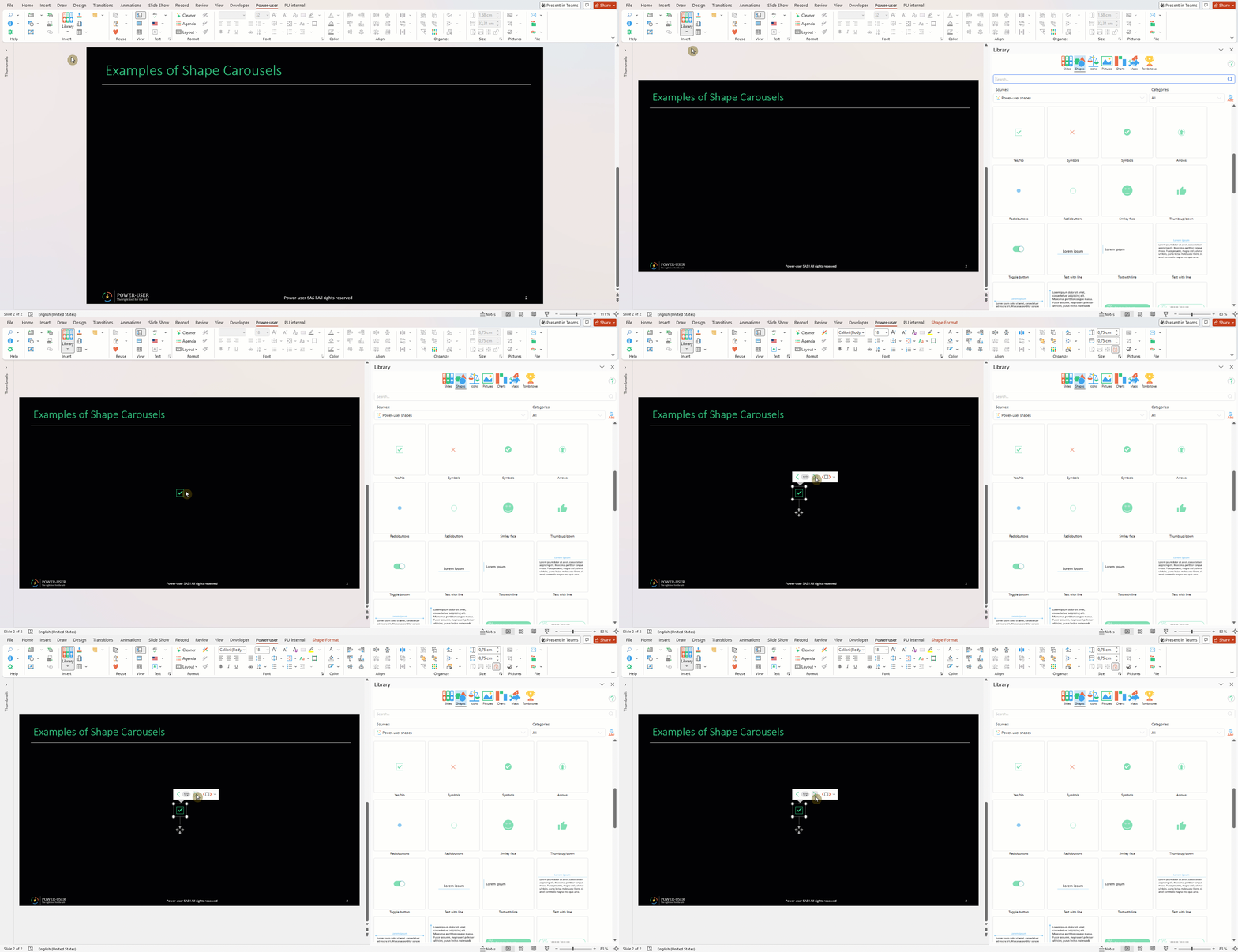
You can find a number of readily available Shape Carousels provided by Power-user, directly in your Shapes Library.
These include clickable buttons, indicators, stamps, slide status, KPI trends and other indicators.
If you create some great Carousels yourself, don't hesitate to share them with us if you think they could benefit others by joining the Shapes Library.
Was this article helpful?
That’s Great!
Thank you for your feedback
Sorry! We couldn't be helpful
Thank you for your feedback
Feedback sent
We appreciate your effort and will try to fix the article