Smart Fields are variables you can insert at multiple places in your presentation, and then centrally update. It can be used for cross-references in the presentation, for creating more dynamic templates with input fields, or simply to avoid repeating modifications at multiple places in your files.
Why use Smart Fields?
Imagine inserting variables in your presentation, like "Client name", "Industry", "Presentation Title", "Project name", or "Confidentiality classification".
You want these variables used on different slides, sometimes even on all slides. But you don't want you (or other users) to have to guess later where all those variables are, to find them and to update them manually.
Smart Fields allow you to create real variables in the presentation. For instance, you create a "Client name" variable, and you insert it at multiple places in the presentation. Then you can centrally manage the variable, to edit its value across the entire presentation at once.
Used in your templates, they allow to quickly customize the template based on a few inputs from the user. Let users fill a form asking the "Client Name", "Presentation Title", "Confidentiality classification", etc. and let Power-user automatically fill in the template based on these values.
How to create Smart Fields
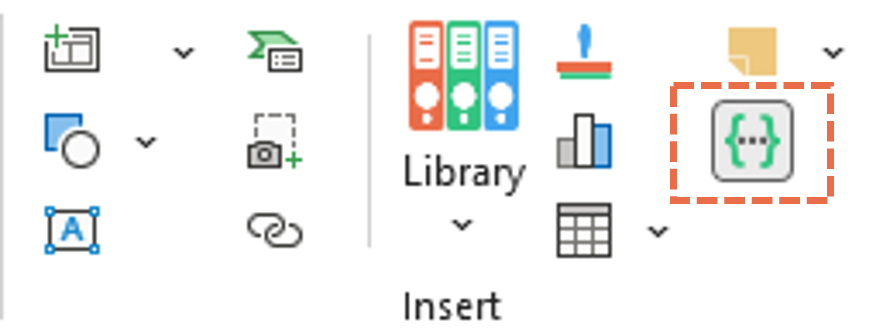
The Smart Fields pane can be open from the Power-user ribbon, clicking the button shown below:
This will open the task pane below:
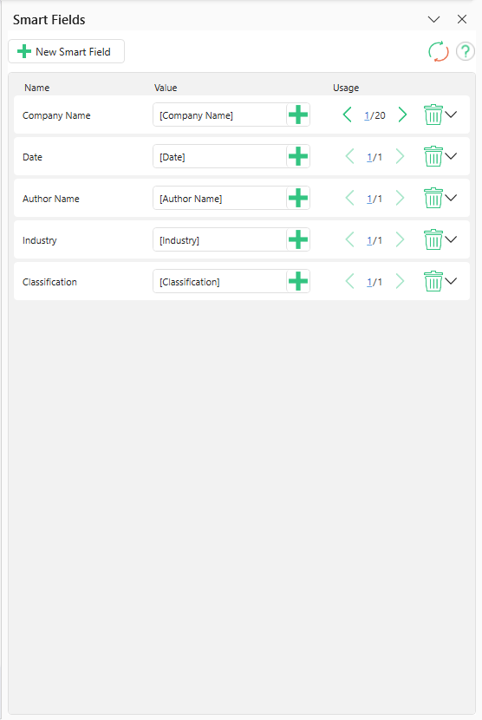
Here are the main commands:
- New Smart Field: this will create a new Smart Field in the list, i.e. a new variable for your presentation.
- Name: give your variable a name, for instance "Presentation Title" or "Company Name".
- Value: this is the current value of the variable. For instance, the "Presentation Title" variable can take the value "Q3 results presentation".
- Click the "+" button to insert the Smart Field in the selected shape. It will insert the current value of the Smart Field, but this value will still be connected to the variable.
- You can then edit the value at any time. For instance, replace "Q3" with "Q4", press Enter, and it will replace the Smart Field value everywhere you had inserted it in the presentation.
- Usage:
- Use the "< 1/10>" arrows to navigate between each instance of the Smart Field, so you can see everywhere it was inserted.
- Delete the Smart Field for 1 specific instance or for all intances in the presentation.
How to update Smart Fields
Updating Smart Fields from the task pane
The Smart Fields can be updated manually from the task pane shown above. Simply edit a value from the textbox in the "Value" column, and click Enter. The new value will be applied for every instance of the Smart Field in your presentation.
Prompting the user with an input form to update the Smart Fields
When creating templates for your key documents, you may want to use Smart Fields so that users can simply replace the variables with the value they need (e.g. replace "Company Name" with the name of the client for whom you are preparing a business proposal).
When a document with Smart Fields in made available to users via the Themes functionality, whenever a user opens it they will see an input form prompting them for inputs to update the Smart Fields value.
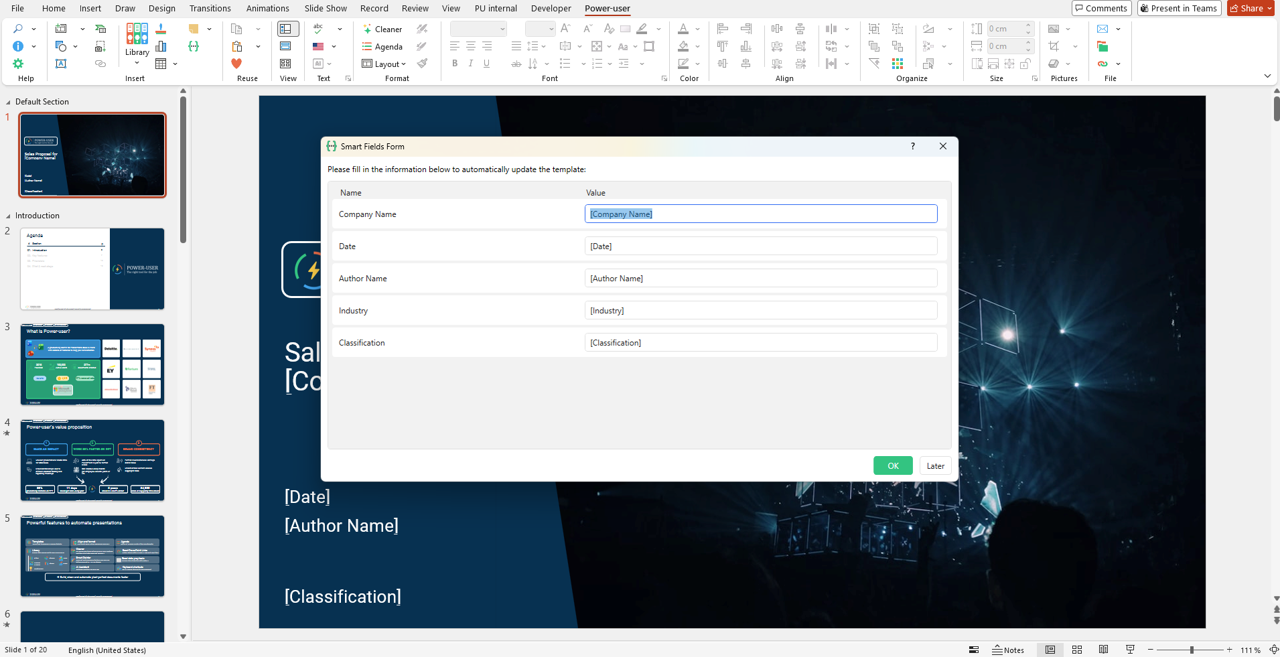
This way, users don't have to know or guess that the presentation contains variables, they are directly prompted for these variables when they open the template.
Was this article helpful?
That’s Great!
Thank you for your feedback
Sorry! We couldn't be helpful
Thank you for your feedback
Feedback sent
We appreciate your effort and will try to fix the article