The Power-user Connector for SharePoint lets the Power-user Library download your organization's files from SharePoint, on behalf of each user, so that admins can share slides, documents, icons and images stored on SharePoint. An IT admin gives consent once for the whole organization, in a few clicks.
In short
- Who: an IT admin with a Microsoft Entra admin account
- How: open the consent link with your domain and accept on behalf of your organization
- Privacy: the Power-user company never has access to your files; only users who already have access can download them
- Large organizations: you can restrict access to selected SharePoint sites
In this article
How to add the Power-user Connector for SharePoint
- Copy the link below and replace <yourdomain.com> with your own domain:
https://login.microsoftonline.com/<yourdomain.com>/adminconsent?client_id=427e8ab0-d35f-4661-b2c4-870071e7c63c&scope=https://graph.microsoft.com/.default&redirect_uri=https%3A%2F%2Fwww.powerusersoftwares.com%2Fsharepoint-connector-microsoft-entra
- Open the link in your browser. The Power-user Connector consent prompt appears.
- Sign in with an admin account, check the box to consent on behalf of your organization, and accept.
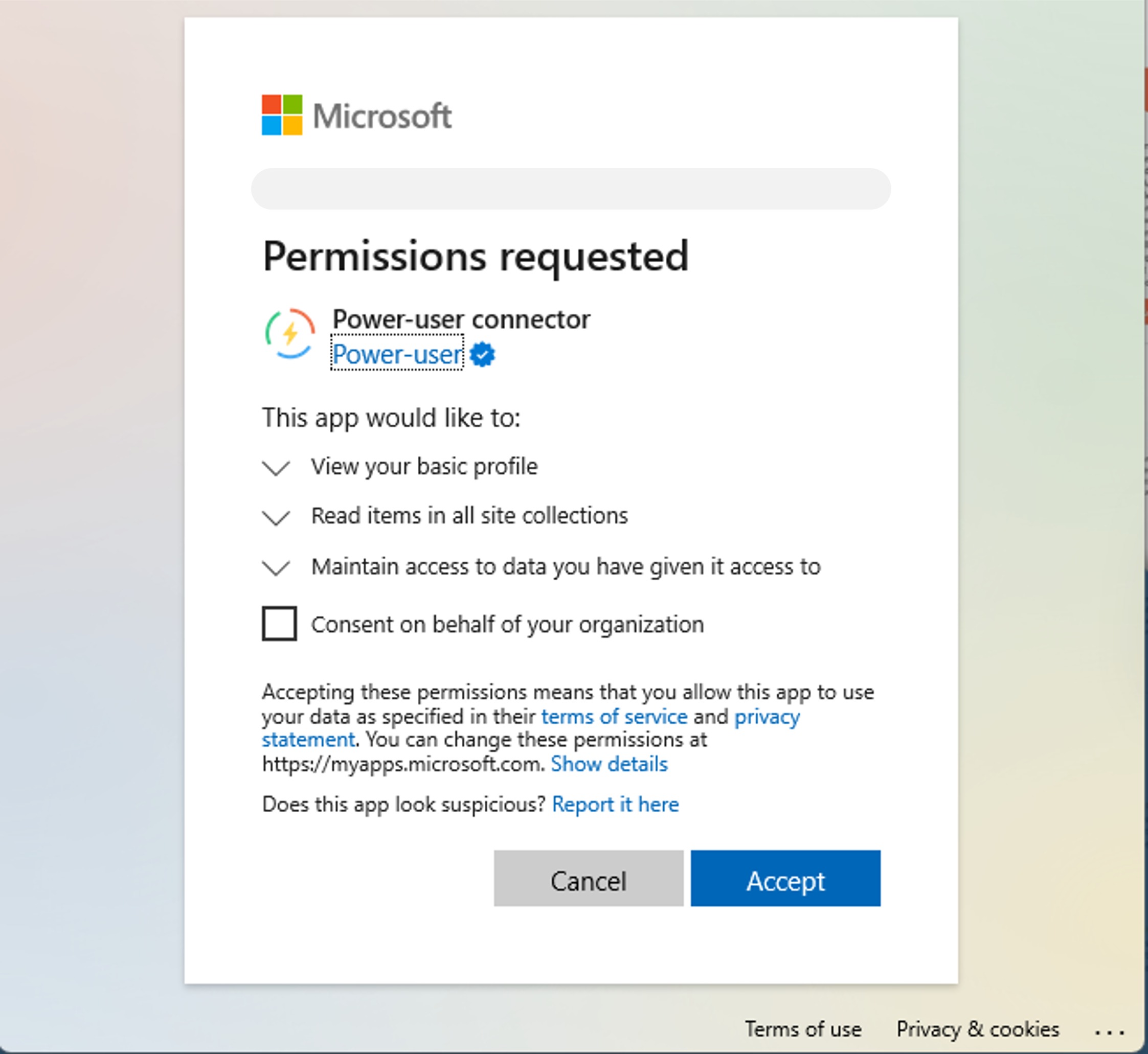
Consent prompt of the Power-user Connector for SharePoint in Microsoft Entra
That's it: users can now open the SharePoint files added to their Power-user Library, and the files download without any difficulty.
If your domain is not verified, use your tenant ID instead, replacing <tenantId> in this link:
https://login.microsoftonline.com/<tenantId>/adminconsent?client_id=427e8ab0-d35f-4661-b2c4-870071e7c63c&scope=https://graph.microsoft.com/.default&redirect_uri=https%3A%2F%2Fwww.powerusersoftwares.com%2Fsharepoint-connector-microsoft-entra
What the connector can access
- The connector uses one Microsoft Graph permission: Sites.Read.All (delegated). Power-user signs in as the user, so it can only read what the user can already open.
- The Power-user company never has access to your files.
- The Power-user application downloads files from SharePoint on behalf of the user of the computer.
- Only users who already have access to a file can download it through the Library.
Why connect SharePoint to Power-user
- Your Power-user admin can add documents, slides, icons, images and other assets that already exist in your organization.
- Users browse and insert this content from the Power-user Library in PowerPoint, Excel or Word, without leaving their application.
- The admin can push updates at any time, so users always have the latest version.
To add SharePoint files to the Library once the connector is in place, see Getting the direct link to a file or folder.
Frequently asked questions about the SharePoint Connector
Why does Power-user need a SharePoint connector?
When Library files are stored on SharePoint, the Power-user application needs permission to download them for each user. An IT admin gives this permission once through the Power-user Connector for SharePoint.
Can Power-user see our SharePoint files?
No. The Power-user company never has access to your files. The Power-user application downloads files on behalf of the user of the computer, and only users who already have access to a file can download it.
Who can give consent for the Power-user SharePoint Connector?
An IT admin with a Microsoft Entra admin account opens the Power-user consent link with the organization's domain and accepts on behalf of the organization.
What if our domain is not verified in Microsoft Entra?
Use the consent link with your tenant ID instead of your domain name. The link is given in the Power-user article on the SharePoint Connector.
Which Microsoft Graph permission does the Power-user SharePoint Connector use?
The standard Power-user Connector for SharePoint uses Sites.Read.All as a delegated permission: it acts on behalf of the signed-in user and reads only what that user can already open.
Can we limit Power-user to some SharePoint sites only?
Yes. Larger organizations can use the limited-rights version of the Power-user connector, which uses Sites.Selected and reaches only the SharePoint sites the IT team grants one by one.
Was this article helpful?
That’s Great!
Thank you for your feedback
Sorry! We couldn't be helpful
Thank you for your feedback
Feedback sent
We appreciate your effort and will try to fix the article