Copy-paste chart dimensions is a feature of the Power-user add-in for Excel that copies the size of a chart and applies it to other charts in one click, including both its external size and its internal size. It is the simplest way to get charts of exactly the same size in Excel.
In short
- Where: Copy chart dimensions and Paste chart dimensions in the Power-user tab of Excel
- What is copied: the external size (the chart object) and the internal size (the chart area)
- In PowerPoint: the Smart Painter copies the same two sizes
In this article
How to copy and paste chart dimensions in Excel
- Select the reference chart and, on the Power-user tab of Excel, click Copy chart dimensions. Its internal and external dimensions are copied.
- Select another chart and click Paste chart dimensions. The copied dimensions are applied.

Copying the dimensions of a chart and pasting them onto another chart in Excel
Why chart sizes are hard to keep consistent in Excel
- Columns change chart sizes: when a column is resized, every chart that overlaps it is resized too.
- Charts have two sizes: an external size (the chart object) and an internal size (the chart area). Excel offers no easy way to align both on several charts.
Copy-paste chart dimensions handles both sizes at once.
Same chart sizes in PowerPoint
In PowerPoint, use the Power-user Smart Painter: it copies the format of a reference object, including its size, and for charts it copies both the external and the internal size.
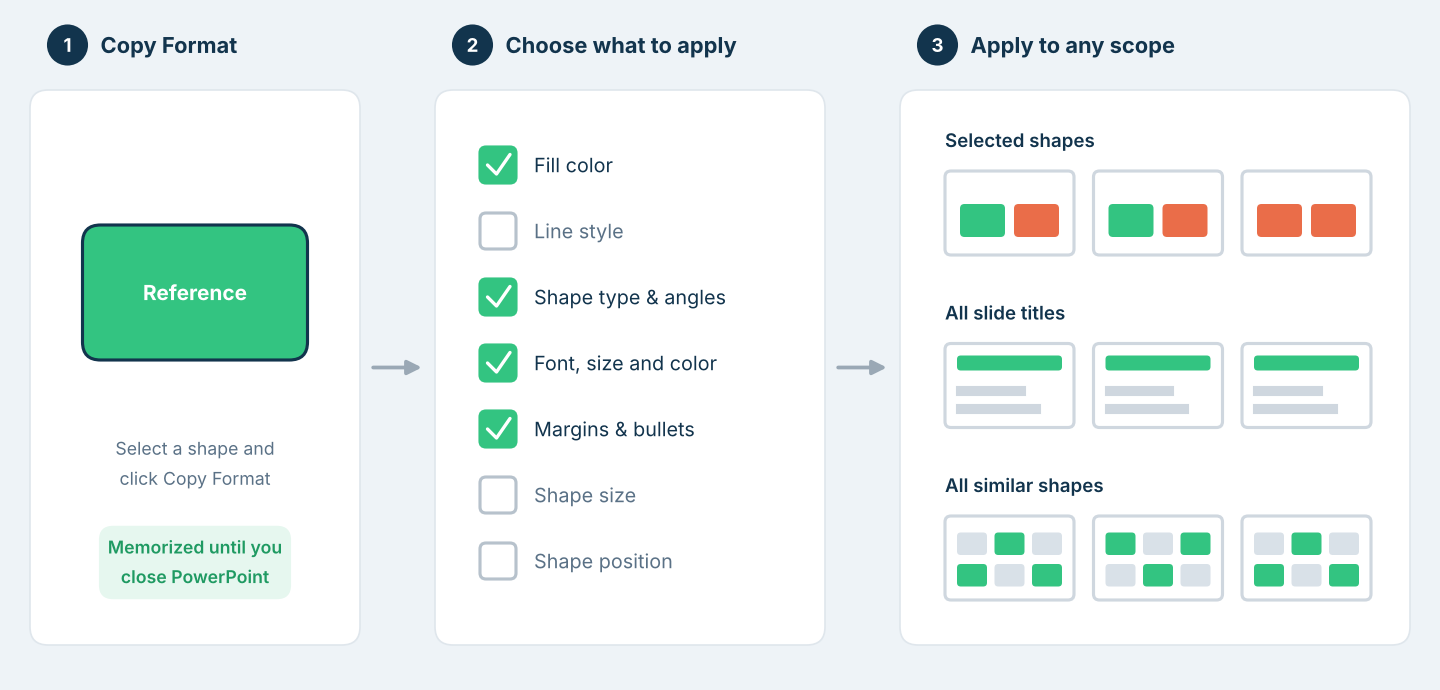
How the Smart Painter copies the format of a reference shape to other shapes
To paste charts from Excel into PowerPoint with the right size, read How to paste charts from Excel to PowerPoint with the correct size. To keep them updated, see the Excel-PowerPoint link.
Frequently asked questions about chart sizes in Excel
How do I make all charts the same size in Excel?
Select a reference chart and click Copy chart dimensions in the Power-user tab of Excel, then select each other chart and click Paste chart dimensions. Both the external and internal sizes are applied.
What is the difference between the chart object and the chart area in Excel?
The chart object is the external frame of the chart, the one you move and resize on the sheet. The chart area is the internal part where the chart is drawn. Power-user Copy-paste chart dimensions copies both.
Why does my Excel chart change size when I resize a column?
By default, an Excel chart is resized with the columns it overlaps. To restore a consistent size, use Power-user Copy chart dimensions on a reference chart, then Paste chart dimensions on the resized chart.
How do I copy the size of a chart in PowerPoint?
Use the Power-user Smart Painter in PowerPoint: copy the format of the reference chart and paste its size onto other charts. It copies both the external and internal size.
Was this article helpful?
That’s Great!
Thank you for your feedback
Sorry! We couldn't be helpful
Thank you for your feedback
Feedback sent
We appreciate your effort and will try to fix the article