The Power-user Gantt charts are ready-made templates of the Power-user add-in that let you build a project timeline in PowerPoint, Excel or Word, with tasks, progress, milestones and the current date. Insert a Gantt chart from the Library and replace the sample data with your own, or start from a Gantt template built directly in the Excel grid.
In short
- Where: Power-user tab › Library › Charts › Gantt charts, in PowerPoint, Excel and Word
- What you get: editable Gantt charts with start and end dates, the current date and milestones, plus Excel grid templates by day or by week
- How it stays current: in the Excel templates, end dates are calculated from start dates, durations and holidays, and today's date is shown automatically
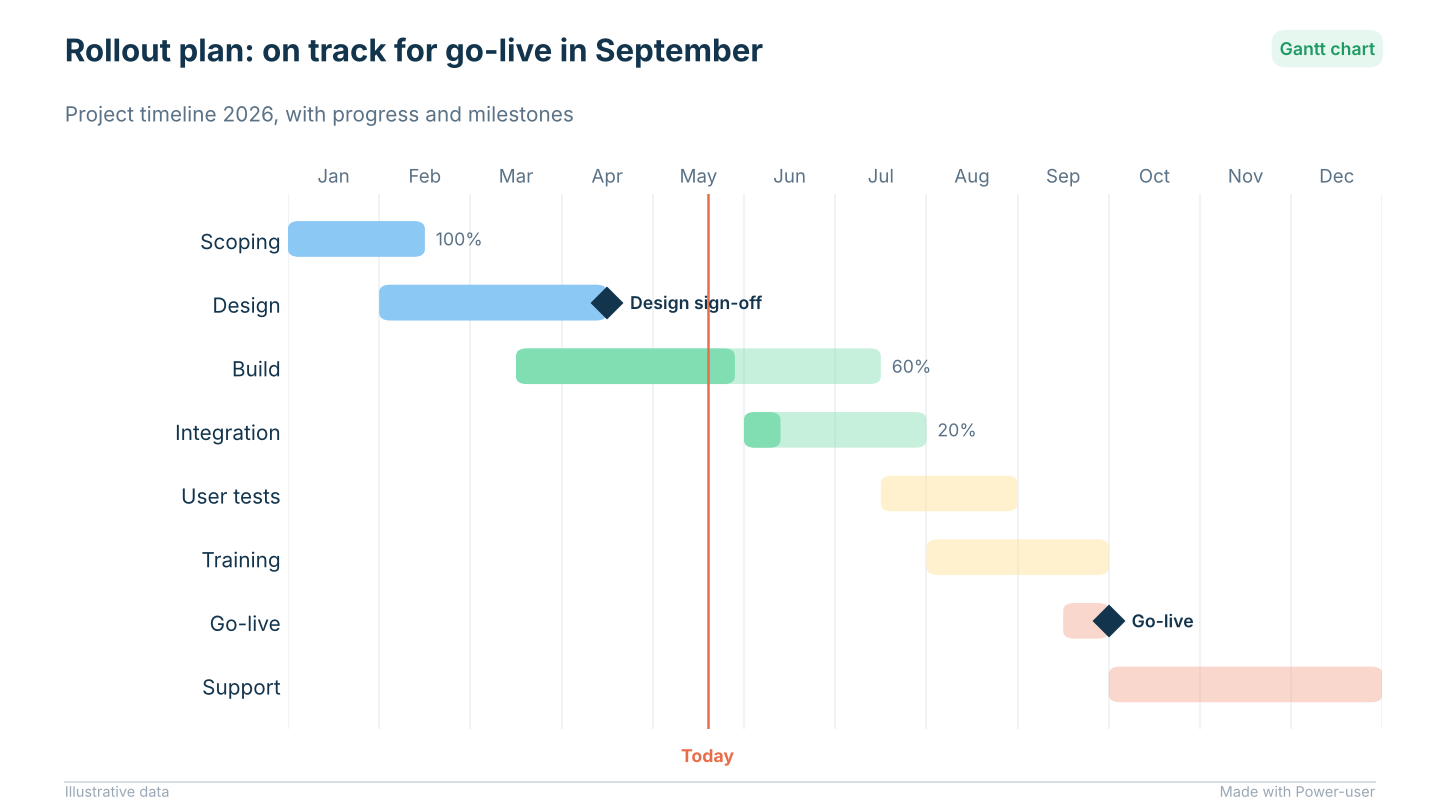
Gantt chart made with Power-user, with progress, milestones and a today line
In this article
How to create a Gantt chart in PowerPoint
- On the Power-user tab, click Library and open the Charts tab.
- Select the Gantt charts category.
- Click a Gantt chart to insert it. It works the same way in Excel and Word.

Gantt chart from the Power-user Library with tasks grouped by phase, milestones and the current date
Edit your Gantt chart
Select the Gantt chart, then:
- Use the contextual menu at the top left of the chart to change its start date and end date, or to show the current date.
- On the Chart Options tab, click Edit data. A mini Excel sheet opens: replace the sample data with your tasks and dates.
- Use the usual Microsoft Office chart buttons to change colors, fonts, labels or axes.
Gantt chart templates in Excel
Instead of a chart object, you can build your Gantt chart directly in the Excel grid, for full control over the layout. Power-user provides ready-made spreadsheets to start from.
Insert a Gantt template in Excel
- On the Power-user tab in Excel, click Library.
- In Templates, browse to the Gantt charts.
- Click the template you need: with days or with weeks as the time unit.

Gantt chart template in the Excel grid, with tasks, owners, start dates, durations and progress
Fill in the template
- Enter the project Start date in the yellow input cell.
- Replace the [TASK CATEGORY], [Task] and [Owner] placeholders with your own.
- For each task, enter the duration in the Days (or Weeks) column and the start date in the START column.
- Optionally, enter the share of work completed in the % DONE column. A partly completed task is shown with two colors.
End dates are calculated automatically from the start dates and durations, and take into account the holidays listed in the Holidays sheet. The current date is highlighted automatically with conditional formatting.
To change the colors of completed or remaining tasks, select a cell of the timeline, click Conditional Formatting and edit the rules.
Frequently asked questions about Gantt charts in PowerPoint and Excel
How do I make a Gantt chart in PowerPoint?
With the Power-user add-in, open the Library, go to the Charts tab, select the Gantt charts category and click a template. Then edit its data and dates like any PowerPoint chart.
Does PowerPoint have a Gantt chart?
PowerPoint has no dedicated Gantt chart type. The Power-user Library adds ready-made Gantt charts to PowerPoint, Excel and Word, with milestones and the current date.
How do I show today's date on a Gantt chart?
Select a Gantt chart inserted from the Power-user Library and turn on the current date in its contextual menu. In the Power-user Excel templates, today's date is highlighted automatically.
Is there a Gantt chart template for Excel?
Yes. In Excel, open the Power-user Library, go to Templates and choose a Gantt template by day or by week. End dates are calculated automatically, including holidays.
How do I make tasks depend on each other in an Excel Gantt chart?
In the Power-user Excel Gantt template, use a formula in the START column so that a task starts the day after another one ends. Delays then move the following tasks automatically.
Was this article helpful?
That’s Great!
Thank you for your feedback
Sorry! We couldn't be helpful
Thank you for your feedback
Feedback sent
We appreciate your effort and will try to fix the article