The Power-user Cleaner is a feature of the Power-user add-in for PowerPoint that checks your presentation for formatting, content, confidentiality and file size issues, and helps you fix them before you share it. In one pane, it finds inconsistent fonts, double words, missing slide numbers, hidden confidential information, unused layouts or large pictures, and lets you fix each issue or all of them at once.
In short
- Where: Power-user tab › Cleaner, or Ctrl + Shift + W
- What you get: one checklist in 5 groups: Text, Content, Confidentiality, File size and Animations
- When to use it: before sending or presenting a deck, to make it flawless
In this article
- How to clean a PowerPoint presentation
- What the Cleaner checks
- Fix text and font issues
- Replace colors in the whole presentation
- Fix slide content
- Remove hidden confidential information
- Reduce the size of your PowerPoint file
- Remove animations and transitions
- Frequently asked questions about cleaning PowerPoint presentations
How to clean a PowerPoint presentation
- Open the Cleaner from the Power-user tab, or press Ctrl + Shift + W. The Cleaner pane opens and lists every check, grouped by topic.
- Go through the list. A green check mark means no issue was found. For the other lines, use the left and right arrows to go through each occurrence in the presentation.
- Fix the issues one by one, or all at once: the trash icon deletes, the wrench icon fixes, and the arrow next to the action button offers options such as Fix all or Delete All.
- Click Refresh at the top of the pane to check the presentation again.

The Cleaner pane with its Text, Content, Confidentiality, File size and Animations checks
What the Cleaner checks
| Group | Checks |
|---|---|
| Text | Inconsistent fonts, double words, double blanks, empty placeholders, 3D and other effects, spelling |
| Content | Missing slide numbers, missing footers, Agenda, accessibility |
| Confidentiality | Notes, comments, pictures Alt Text, document properties, sticky notes, fully or partially off-slide content, strikethrough text |
| File size | Hidden slides, unused layouts, large media |
| Animations | Slide animations, slide transitions |
Fix text and font issues
Inconsistent fonts
The Cleaner lists every font that is not the theme font of your presentation, with the number of shapes using it. Use the arrows to go through these shapes, then convert them to the theme font one by one or all at once with Fix all. From the same menu, Edit theme fonts changes the theme font, and Replace fonts replaces one font with any other font.

Inconsistent fonts in the Cleaner, with the Fix all, Edit theme fonts and Replace fonts options
Double words and double blanks
Use the left and right arrows to find each double word or double blank in the presentation. Click the Delete button to remove the selected one, or open the arrow menu next to it and choose Delete All.
Empty placeholders, effects and spelling
- Empty placeholders: removes the empty placeholders typically created when you change or reset the layout of slides.
- 3D and other effects: removes effects such as 3D, bevels, shadows, reflections and glows, to keep your slides professional.
- Spelling: launches the spelling checker to review the whole presentation.
- Selective formatting: applies bold, italic, underline or a color to specific words in the entire presentation.
Replace colors in the whole presentation
Color inconsistencies are one of the most frequent issues in a presentation. They often come from standard colors used instead of theme colors, or from slides assembled from presentations with different masters and layouts. Replace colors fixes them in a few clicks.
- From the Power-user tab, open the Format drop-down menu (center left of the ribbon) and click Replace colors.
- Select the color(s) you want to replace. The window lists all the colors used in All slides or in the Current slide. If you select one color, turn on Select almost identical colors to add all colors with a very similar code. Turn on Automatically apply to theme colors' tints & shades to replace a color and all its tints and shades at once (for example blue to red, light blue to light red, dark blue to dark red).
- Select the new color to apply: click the colored square to open the color palette, or enter the Red, Green and Blue values.
- Select the scope of application: replace colors in Text, Fill and/or Outline, and choose the slide range with Apply from slide and to slide.
- Click OK. Power-user goes through every shape in the selected scope and replaces the colors.
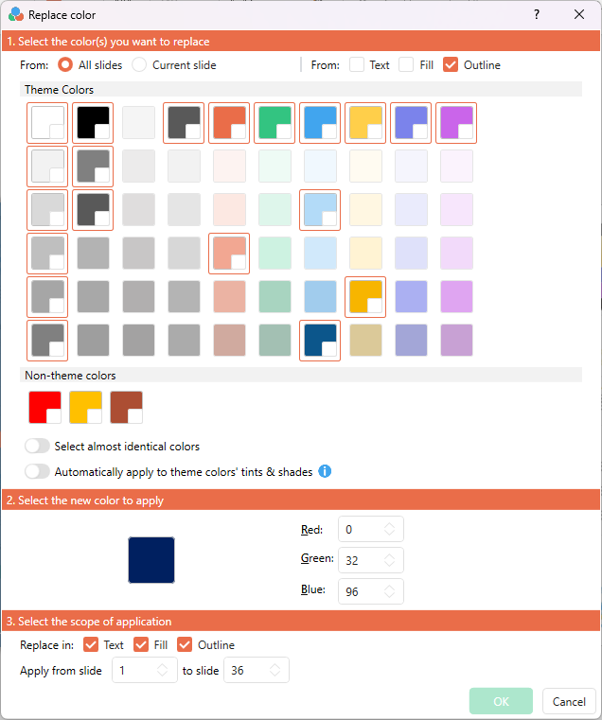
Replace color window: colors to replace, new color to apply and scope of application
Charts: Replace colors also works with charts, so you can replace the colors of chart series on all your slides at once. This is very useful when a presentation has many charts that are not in your corporate colors.
Fix slide content
Missing slide numbers and footers
Use the left and right arrows to find slides with a missing slide number or a missing footer, and fix them. You can also remove all slide numbers or footers, for example to apply them again from scratch, or open the Header & Footer dialog to set a date, slide number or footer on all slides.
Update the Agenda
Click this button to update all agenda slides in the presentation, so your table of contents is always up to date. Learn more in the Agenda article.
Accessibility checker
Check whether your slides follow accessibility best practices, so they work for all your audience.
Remove hidden confidential information
Before sharing a file, make sure it does not contain confidential information hidden in:
- Notes below your slides.
- Comments.
- Pictures Alt Text, which PowerPoint adds automatically by default.
- Document properties. Presentations often show a file author who has nothing to do with the current presentation, and PDFs often show a title taken from the document properties instead of the real file name.
- Sticky notes.
- Fully or partially off-slide content.
- Strikethrough text, maybe left by a colleague who reviewed the file.
Reduce the size of your PowerPoint file
Hidden slides
Export one or all hidden slides into a separate presentation: click Export and choose the folder where to save it. You keep these slides without sending them.
Unused layouts
Delete the layouts that no slide of the presentation uses. Presentations often contain dozens, hundreds or even thousands of layouts, added every time a slide from another deck was pasted. Deleting them can considerably reduce the size of your file.
Large media
Click Analyze next to Large media. Power-user scans the presentation and lists the media that make your file heavy, sorted by size.

Large media found by the Cleaner, sorted by file size
Select a media and click Optimize to open the PowerPoint compression window:
- Uncheck Apply only to this picture to optimize all the pictures of the presentation.
- Check Delete cropped areas of pictures to remove the cropped areas that PowerPoint keeps in memory.
- Select the resolution to apply and click OK.

PowerPoint Compress Pictures window opened from the Cleaner
Remove animations and transitions
Depending on the context, animations and transitions can be useful or look unprofessional. The Cleaner lets you remove Slide animations and Slide transitions: click Delete to remove one, or Delete All to remove all of them from the presentation.
Frequently asked questions about cleaning PowerPoint presentations
How do I clean up a PowerPoint presentation before sending it?
Open the Power-user Cleaner in PowerPoint with Ctrl + Shift + W. It lists text, content, confidentiality, file size and animation issues in one pane, and lets you fix them one by one or all at once.
What is the keyboard shortcut for the Power-user Cleaner?
Press Ctrl + Shift + W in PowerPoint to open the Power-user Cleaner.
How do I find and fix inconsistent fonts in PowerPoint?
The Power-user Cleaner lists every font that is not the theme font of the PowerPoint presentation. You can convert the shapes to the theme font one by one or all at once with Fix all, or replace a font with another one.
How do I replace a color in a whole PowerPoint presentation?
With Power-user, open the Format drop-down menu of the Power-user tab and click Replace colors. Select the colors to replace, the new color and the scope (text, fill, outline, slide range), then click OK. It also works on chart series.
How do I remove hidden confidential information from a PowerPoint file?
The Power-user Cleaner finds slide notes, comments, pictures Alt Text, document properties, sticky notes, off-slide content and strikethrough text in a PowerPoint presentation, so you can delete them before sharing the file.
How do I reduce the size of a PowerPoint file?
In the Power-user Cleaner, delete unused layouts, export hidden slides to a separate file, and analyze large media to compress pictures and delete their cropped areas.
How do I remove all animations and transitions in PowerPoint?
In the Power-user Cleaner, click Delete All next to Slide animations or Slide transitions to remove them from the whole PowerPoint presentation.
Was this article helpful?
That’s Great!
Thank you for your feedback
Sorry! We couldn't be helpful
Thank you for your feedback
Feedback sent
We appreciate your effort and will try to fix the article