The Power-user Sticky notes are a feature of the Power-user add-in for PowerPoint that adds a sticky note to the current slide in one click, to comment a presentation and work on it with your colleagues. You can hide all sticky notes before sharing a draft, then show them again to resume your work.
In short
- Where: Power-user tab › Sticky notes
- What you get: a sticky note in the top right corner of the slide, ready to type in, and the next ones stacked below
- Before sharing: hide all sticky notes at once from the Cleaner
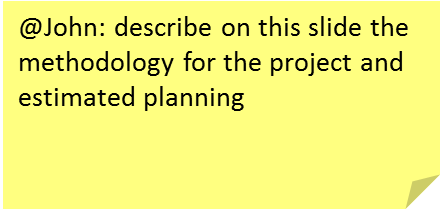
Example of a Power-user sticky note with a comment for a colleague
In this article
How to add a sticky note in PowerPoint
- On the Power-user tab, click Sticky notes.
- A sticky note is added in the top right corner of the current slide. Start typing your comment right away.
- To add another one on the same slide, click Sticky notes again: the new note is placed just under the previous one.

Sticky note added in the top right corner of a PowerPoint slide
Hide sticky notes before sharing a draft
To share a clean draft of your slides, hide all sticky notes of the presentation at once from the Cleaner. Show them again afterwards to resume your work.
Place sticky notes outside the slide
By default, sticky notes are placed in the inside corner of the slide. To place them in the outside corner instead, change Sticky notes insertion position in the Power-user Settings.
Frequently asked questions about sticky notes in PowerPoint
How do I add a sticky note to a PowerPoint slide?
With the Power-user add-in, click Sticky notes on the Power-user tab. A sticky note appears in the top right corner of the current slide, ready for your comment.
How do I hide all sticky notes before sending a PowerPoint presentation?
Open the Power-user Cleaner and hide the sticky notes of the whole presentation at once. You can show them again later to continue working.
Can I place sticky notes outside the PowerPoint slide?
Yes. In the Power-user Settings, set Sticky notes insertion position to the outside corner of the slide.
What happens if I add several sticky notes on the same slide?
Power-user places each new sticky note just under the previous one, in the top right corner of the PowerPoint slide.
Was this article helpful?
That’s Great!
Thank you for your feedback
Sorry! We couldn't be helpful
Thank you for your feedback
Feedback sent
We appreciate your effort and will try to fix the article