As a Power-user admin, you can deliver licenses to your users in 4 ways: send them an email yourself, let Power-user email them from the admin portal, roll out Power-user centrally with Intune or a script, or let every user of your email domain activate a license automatically. The right option depends on the number of users and on how much you want to involve your IT team.
In short
- Few users: send an email yourself, or let Power-user send it from the admin portal
- Many users: roll out centrally with Intune or a script
- Whole organization: automatic activation for your email domain, on request
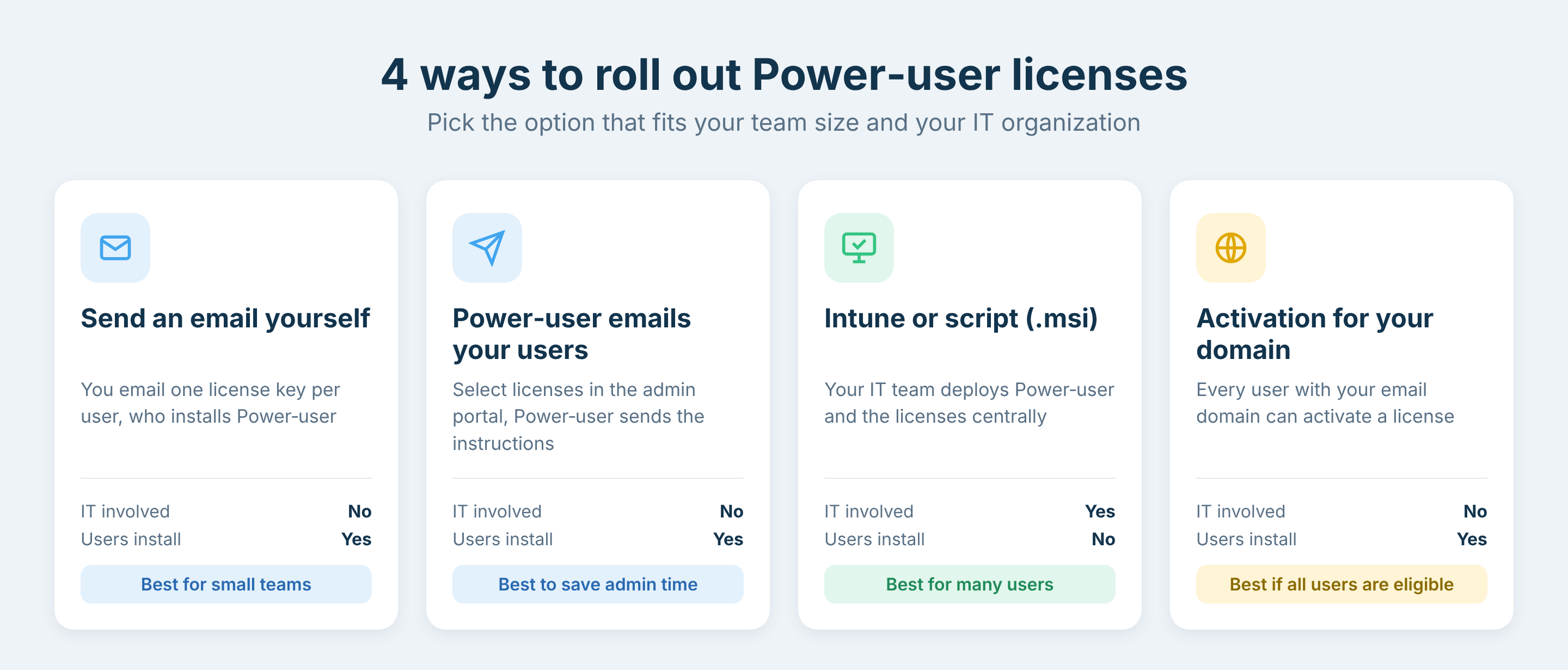
The 4 options to roll out Power-user licenses to your users
In this article
Which roll-out option to choose
| Option | Who does what | Best for |
|---|---|---|
| Send an email to your users | You email each user a license key; users install Power-user themselves | The simplest option, for small teams |
| Let Power-user email your users | You select licenses in the admin portal; Power-user emails the installation instructions | Admins who want to save time without involving IT |
| Roll out with Intune or a script | Your IT team installs Power-user and the licenses on the users' computers | Many users; every license gets activated |
| Automatic activation for your domain | Any user with your email domain gets access to Power-user | Organizations where all users are eligible |
Send an email to your users
The simplest way: send the users an email with everything they need to install Power-user on their own.
- Prepare the email. You can reuse and adapt the wording of the Email draft template attached to this article.
- Fill in the table of the email with your license keys and the users' emails, so that each user has one license key.
- Add the users as recipients, preferably in Bcc, and your Power-user account manager in Cc in case users need support.
Let Power-user email your users
Power-user can email the users for you with their installation instructions: select the licenses in your admin portal and send the invitations. See Inviting new users to install Power-user.
Roll out centrally with Intune or a script
Power-user provides an .msi file so that your IT team can deploy Power-user and the licenses centrally:
- With Microsoft Intune: see Rolling-out Power-user with Intune.
- With a CMD or PowerShell script: see Rolling-out Power-user by script.
| Pros | Cons |
|---|---|
| Users do not have to install Power-user or activate their license. All licenses get activated, while some users may ignore an email. | Involves your IT team, which can be unnecessary complexity for small teams. |
Automatic activation for your email domain
We can give access to Power-user to every user with your organization's email domain. It is the easiest option to manage licenses as an admin, but it only fits if all users of the domain are eligible to a Power-user license.
Frequently asked questions about rolling out Power-user
How do I deploy Power-user to all users of my company?
Power-user can be rolled out centrally by your IT team with the Power-user .msi file, using Microsoft Intune or a CMD or PowerShell script. Users then have Power-user installed and activated without doing anything.
Is there an MSI installer for Power-user?
Yes. Power-user provides an .msi file for central deployment with Microsoft Intune or a script.
How do I send Power-user license keys to my users?
Either email the license keys yourself, one per user, using the email template attached to the Power-user roll-out article, or let Power-user email the installation instructions to the users from the admin portal.
Can users activate Power-user automatically with their company email?
Yes. Power-user can enable every user with your organization's email domain to activate a license. It suits organizations where all users of the domain are eligible; contact Power-user to set it up.
Which roll-out option is best for a small team?
For a small team, sending an email with the license keys, or letting Power-user email the users from the admin portal, is simpler than involving the IT team.
Was this article helpful?
That’s Great!
Thank you for your feedback
Sorry! We couldn't be helpful
Thank you for your feedback
Feedback sent
We appreciate your effort and will try to fix the article