The Power-user Library is a feature of the Power-user add-in for PowerPoint that gives you ready-to-use visual assets such as templates, icons, maps and tombstones. These assets are not downloaded with the main setup: they download separately, the first time you open the Library and whenever an update affects them. If the Library stays empty, or if its items do not display or insert correctly, the steps below fix the problem in most cases.
- When it downloads: the first time you open the Library, and when an update affects the Library assets.
- How long it takes: no more than a couple of minutes. Then reopen the Library to see the content.
- If the Library is empty: check your Internet connection, then your proxy, firewall or antivirus, or download the Library content manually (see below).
- If an item does not insert: delete the .dll files in the Extensions folder, or insert the item and press Ctrl+V.
In this article
- How to download the Power-user Library content in PowerPoint
- What to do if the Library is empty and the download box is missing
- What to do if Library items are not displaying or inserting correctly
- Why the Library downloads separately from the setup
- Frequently asked questions about Library download issues
How to download the Power-user Library content in PowerPoint
- Open the Library for the first time. A download box like the one below appears.

Download box displayed the first time the Power-user Library is opened
- Wait for the download to complete. It should not take longer than a couple of minutes.
- Once the download is complete, reopen the Library. The content is now visible.
What to do if the Library is empty and the download box is missing
Sometimes the Library appears empty and the download box does not show. The most likely reason is that Power-user cannot reach the server to download the Library content. Try the solutions below in this order.
Check your Internet connection
Make sure the computer is connected to the Internet, restart PowerPoint and open the Library again.
Check the proxy, firewall or antivirus
If the download box still does not show, a proxy, firewall or antivirus may be blocking access to the Power-user server:
- Switch your computer to a different Internet source (for example, use your smartphone as a hotspot). Restart PowerPoint and open the Library again.
- Temporarily disable the firewall and antivirus. Restart PowerPoint and open the Library again. Do not forget to reactivate your firewall and antivirus afterwards.
- Ask your IT department to whitelist the domains powerusersoftware.com and powerusersoftwares.com.
Download the Library content manually
- Download the Extensions.zip file.
- Unzip the file and paste its content in C:\Users\%UserName%\AppData\Roaming\Power-user\Extensions\
- Restart PowerPoint. The assets are now visible in the Library.
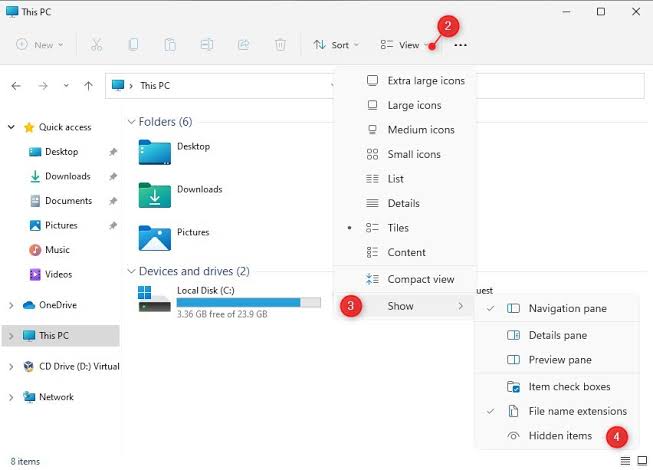
Note: if you cannot find the AppData folder, , it is probably simply hidden. See below how to make it visible:
You may have set a different location for saving the libraries. On the Power-user ribbon, click Settings (the blue cog at the far left of the ribbon) and check the path under Save Power-user libraries in:
What to do if Library items are not displaying or inserting correctly
If items from the Library do not insert, or if the Library does not display previews correctly, follow these steps:
- Go to C:\Users\%UserName%\AppData\Roaming\Power-user\Extensions\ and delete all the existing .dll files.
- Reopen PowerPoint and the Library. The libraries download again.
- If the error remains, insert the item and then press Ctrl+V. Power-user is sometimes denied access to the Paste command, but the keyboard shortcut still pastes the content.
Why the Library downloads separately from the setup
Downloading the Library separately keeps software updates light: you do not have to download the entire content of the Library again for every new version of Power-user. Only the assets affected by an update are downloaded.
Frequently asked questions about Library download issues
Why is the Power-user Library empty?
The Power-user Library is usually empty because Power-user cannot reach its server to download the Library content. Check the Internet connection, then check whether a proxy, firewall or antivirus is blocking access, and restart PowerPoint before opening the Library again.
How long does the Power-user Library take to download?
The Power-user Library content should download in no more than a couple of minutes, the first time you open the Library in PowerPoint. Once the download is complete, reopen the Library to see its content.
How do I download the Power-user Library manually?
To download the Power-user Library manually, download the Extensions.zip file provided by Power-user, unzip it, paste its content in C:\Users\%UserName%\AppData\Roaming\Power-user\Extensions\ and restart PowerPoint. The assets then appear in the Library.
Where are the Power-user Library files stored?
By default, the Power-user Library files are stored in C:\Users\%UserName%\AppData\Roaming\Power-user\Extensions\. If you set a different location, you can find it in the Power-user Settings.
Which domains should IT whitelist for the Power-user Library?
IT should whitelist the domains powerusersoftware.com and powerusersoftwares.com so that Power-user can download the Library content.
What should I do if an item from the Power-user Library does not insert in PowerPoint?
If an item from the Power-user Library does not insert in PowerPoint, delete the .dll files in C:\Users\%UserName%\AppData\Roaming\Power-user\Extensions\ and reopen PowerPoint so the libraries download again. If the error remains, insert the item and press Ctrl+V: the keyboard shortcut works even when Power-user is denied access to the Paste command.
Why doesn't Power-user download the Library during installation?
Power-user downloads the Library separately from the main setup so that software updates stay light. The Library content downloads the first time you open the Library and when an update affects its assets, instead of with every new version of Power-user.
Was this article helpful?
That’s Great!
Thank you for your feedback
Sorry! We couldn't be helpful
Thank you for your feedback
Feedback sent
We appreciate your effort and will try to fix the article