The Power-user Smart Painter is a feature of the Power-user add-in for PowerPoint that copies the formatting of a reference shape and pastes only the properties you choose, on one shape or on your entire presentation at once. It works like PowerPoint's Format Painter, but it remembers your reference shape, can also copy size and position, and applies the formatting to all slide titles or all similar shapes in a slide range.
In short
- Where: Power-user tab › Format group › Smart Painter - Copy Format and Smart Painter - Paste Format
- What you get: choose exactly which properties to paste (fill, line, font, margins, bullets, size, position...) and where: selected shapes, all slide titles or all similar shapes
- How it stays available: the reference format is memorized until you copy another shape or close PowerPoint
In this article
How to copy and paste formatting in PowerPoint with the Smart Painter
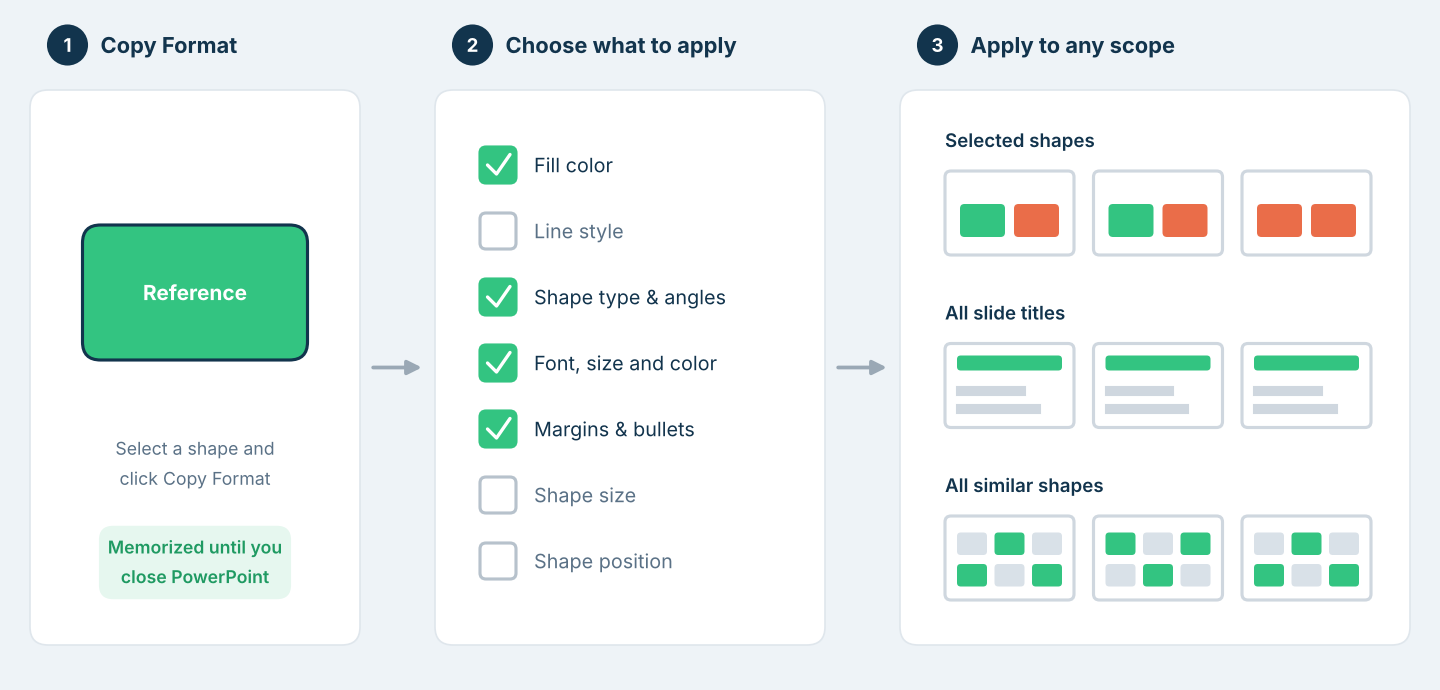
How the Smart Painter works: copy the format of a reference shape, choose what to apply, then apply it to selected shapes, all slide titles or all similar shapes
The Smart Painter has two buttons in the Format group of the Power-user tab: Smart Painter - Copy Format and Smart Painter - Paste Format.

Smart Painter Copy Format and Paste Format buttons in the Format group of the Power-user tab
Step 1: Copy the format of a reference shape
Select the shape whose formatting you want to reuse and click Smart Painter - Copy Format. Power-user memorizes everything about this shape: size, position, colors, margins, font, bullets, etc. It keeps it until you copy the format of another shape or close PowerPoint.
Step 2: Choose the properties to apply
Click Smart Painter - Paste Format. The Smart Painter - Apply format window opens. Check the properties of the reference shape that you want to apply, in any combination:
| Group | Properties |
|---|---|
| Shape format | Fill color, line style (color, weight, dashes), type (rectangle, rounded corners, oval...), angles, shape size |
| Text format | Font, size and color, text anchor (top, middle or bottom), margins, bullets (style of each level), line spacing |
| Position | Shape position |

Smart Painter Apply format window with shape format and text format properties
Step 3: Choose the scope and apply
In the drop-down list at the bottom of the window, choose where to apply the formatting, then click OK:
- The currently selected shapes.
- All shapes in a slide range.
- All slide titles in a slide range.
- All shapes with a given fill color, shape type, size, name, font color, etc., in a slide range.
Smart Painter vs PowerPoint Format Painter
The Smart Painter is an improved version of PowerPoint's Format Painter, which copies all the formatting of one shape to another.
| Format Painter | Smart Painter | |
|---|---|---|
| Memory | Forgets the reference as soon as you click elsewhere | Keeps the reference until you copy another shape or close PowerPoint |
| What is applied | Everything: fill, line, font, margins, bullets, effects... | Only the properties you check |
| Size and position | Not available | Can apply the size and position of the reference shape |
| Scope | One shape at a time | Selected shapes, all slide titles or all similar shapes in a slide range |
With the Format Painter, you often have to restore manually the formatting you did not want to change, and format dozens of slides one shape at a time. The Smart Painter avoids both.
Examples: what you can do with the Smart Painter
Make all slide titles consistent
Keeping titles consistent takes time, especially when slides use titles from different layouts. With the Smart Painter, it takes a few clicks:
- Select a reference slide title and click Smart Painter - Copy Format.
- Click Smart Painter - Paste Format.
- Apply the combination below, on all slide titles.

Smart Painter settings to make all slide titles consistent
Make all bullets consistent
Presentations often end up with different bullet styles, sizes and indents across bullet levels. To make them consistent:
- Select a reference shape that has the bullets you want for each level, and click Smart Painter - Copy Format.
- Click Smart Painter - Paste Format.
- Apply the combination below.

Smart Painter settings to make all bullets consistent
Give rounded shapes the same angles
Rounded shapes look more consistent with identical angles, but the angle cannot be set precisely by hand. Copy it from a reference shape instead:
- Select a reference shape with the angle to copy, and click Smart Painter - Copy Format.
- Click Smart Painter - Paste Format.
- Apply the combination below.

Smart Painter settings to copy the angles of a rounded shape
Copy the external and internal size of charts
Office charts have two sizes: the external size of the chart object, and an internal size, the space used by the plot area inside it. Consistent charts need both to be identical, but the internal size cannot be set precisely and changes whenever you resize the chart.
In PowerPoint, select a reference chart, click Smart Painter - Copy Format, then Smart Painter - Paste Format and apply Shape size to the selected charts. Both the external and the internal sizes are applied. In Excel, use Copy-paste chart dimensions.
Frequently asked questions about copying formatting in PowerPoint
What is the difference between the Format Painter and the Smart Painter?
PowerPoint's Format Painter copies all the formatting of one shape to another, one shape at a time. The Power-user Smart Painter lets you choose which properties to paste, can also apply size and position, keeps the reference until you close PowerPoint, and applies it to many shapes at once.
How do I apply the same format to all slide titles in PowerPoint?
With the Power-user Smart Painter, select a reference title and click Copy Format, then click Paste Format, choose the properties to apply and select all slide titles as the scope.
How do I make bullets consistent in a PowerPoint presentation?
Select a shape with the bullets you want, click Smart Painter - Copy Format in Power-user, then Paste Format and apply the bullet properties to the shapes or slide range of your choice.
Can I copy the size and position of a shape in PowerPoint?
PowerPoint's Format Painter cannot copy size or position. The Power-user Smart Painter can: check Shape size or Shape position in the Apply format window.
How do I give rounded rectangles the same corners in PowerPoint?
Select a reference rounded shape, click Smart Painter - Copy Format in Power-user, then Paste Format and apply the angles to the other shapes.
How long does the Smart Painter remember the copied format?
The Power-user Smart Painter keeps the copied format until you copy the format of another shape or close PowerPoint, even if you click elsewhere in the meantime.
How do I make several PowerPoint charts exactly the same size?
Select a reference chart, click Smart Painter - Copy Format in Power-user, then Paste Format and apply Shape size to the other charts. Both the external and internal chart sizes are applied.
Was this article helpful?
That’s Great!
Thank you for your feedback
Sorry! We couldn't be helpful
Thank you for your feedback
Feedback sent
We appreciate your effort and will try to fix the article